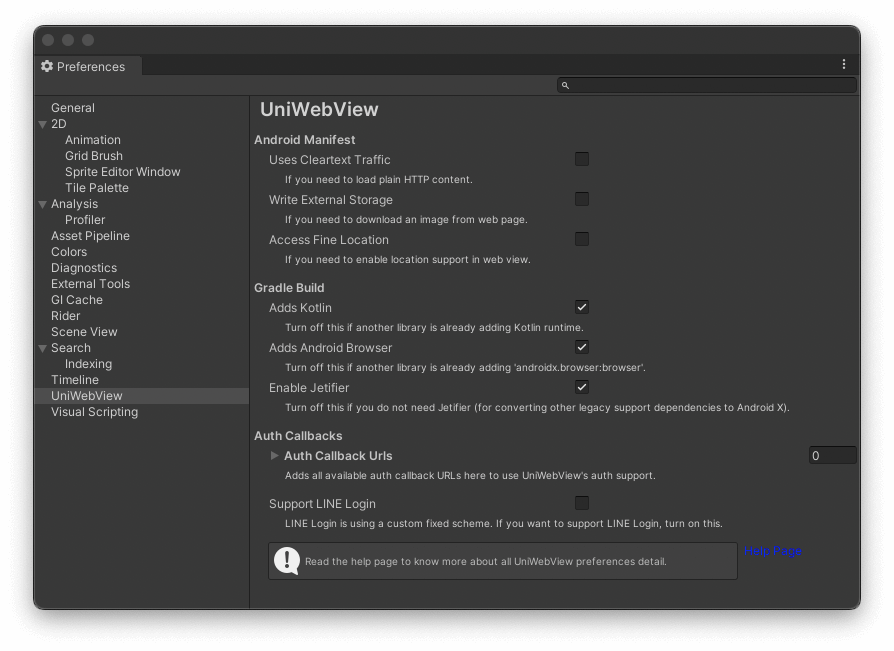
# UniWebView Complete Content ## Guide Documentation ### Introduction # Introduction > UniWebView is a Unity plugin for iOS and Android, enabling web view integration with features like OAuth 2.0, JavaScript support, and cross-platform compatibility. ## What can UniWebView do UniWebView is a Unity 3D plugin for adding a web view component to your Unity 3D mobile games on iOS and Android. It provides a set of abstract, cross-platforms, and high-level APIs in C#. That means you can implement your web view in your game without any knowledge of the underlying native platform. It boosts your development process dramatically when you need to show an announcement or notice, add a leader board for player rankings, or display any interactive web pages to your users. ## Feature List #### Web Content Browsing - [HTTP and HTTPS pages](/api/#load) - [Local Files](loading-local-files.md) - [Presenting and Dismissing](transition.md) - [Size and Position](position-and-size.md) - [Loading Events](/api/#events-summary) - [Safe Browsing Mode](safe-browsing.md) #### Interacting with Web Page - [Embedded Toolbar](embedded-toolbar.md) - [Full JavaScript Support](using-javascript.md) - [URL Messaging System](messaging-system.md) - [Channel Messaging System](channel-message.md) #### Other Tasks - [OAuth 2.0 Support](oauth2.md) - [Videos, inline or full-screen](playing-videos.md) - [Image Picking & Uploading](uploading.md) - [Render As Texture](render-as-texture.md) - [User Agent & Cookie](/api/#setuseragent) - [Allow clicks to pass through](transparency-through.md) - [Full Log & Debugging](debugging.md) And much more. Please check the [full API Reference](/api). ## Supported Platforms UniWebView v6 supports running on: - **Unity 2021.3.37 LTS**, **2022.3.23 LTS**, or **Unity 6 (6000.x)** or above recommended (earlier versions may still work but are not validated regularly) - **iOS 12.0** or above - **Android 5.0** (API Level 21) or above ## How It Works UniWebView wraps the technology under the hood to render a general-purpose web view: - On iOS, [WKWebView](https://developer.apple.com/reference/webkit/wkwebview) - On Android, [WebView](https://developer.android.com/reference/android/webkit/WebView.html) It also provides a "Safe Browsing" mode, to help you get a system-level experience of web content, which uses: - On iOS, [SFSafariViewController](https://developer.apple.com/documentation/safariservices/sfsafariviewcontroller) - On Android, [Custom Tabs](https://developers.google.com/web/android/custom-tabs) UniWebView supports the standard OAuth 2.0 with the [Authorization Code Flow](https://auth0.com/docs/get-started/authentication-and-authorization-flow/authorization-code-flow), which is the most common way to use OAuth 2.0 in a client app: - On iOS, [ASWebAuthenticationSession](https://developer.apple.com/documentation/authenticationservices/aswebauthenticationsession) - On Android, [Custom Tabs](https://developers.google.com/web/android/custom-tabs) UniWebView also contains Unity Editor support on macOS for debugging purposes. You can bring up a standalone web view directly in the Play Mode of Unity Editor if you are developing your Unity game on macOS. :::warning WINDOWS EDITOR If you are working on a Windows PC, you can still build and use UniWebView on mobile devices, but you cannot see the result directly in the Windows Unity Editor. UniWebView does not come with Unity Editor support on Windows. ::: :::tip MAC OS TARGET UniWebView on macOS Editor is a full-featured variety of its iOS version. Although UniWebView is designed for mobile platforms, it does not prevent you from putting it into a standalone macOS game. ::: ## About Version 6 The project started in 2013 and continues to evolve with platform changes. Version 6 focuses on a modern messaging layer (Channel Messages), reliability with new iOS rendering changes (transparency clicking through redesign), build automation for large Android distributions, and XCFramework adoption for Apple Silicon. If you are upgrading from v5, review the [Version Highlight](./version-highlight.md) and the [Migration Guide (v5 to v6)](./migration-guide-v5-to-v6.md). Upgrading from v5 is usually seamless: remove the old package, import v6, and (if you use transparency clicking through) add the `data-uv-transparency="opaque"` attributes to interactive elements. > Need older docs? v5 docs are available at [docs-v5.uniwebview.com](https://docs-v5.uniwebview.com). ## Next Step If you are ready, follow the [Installation](./installation.md) and subsequent guides to know the basic usage of UniWebView. Please feel free to browse this documentation site and UniWebView's [APIs](/api). You can find more information on UniWebView's [official site](https://uniwebview.com) too. --- ### Adapting to AAR File # Adapting to AAR File > Upgrade to UniWebView 3.7.0+ by replacing UniWebView.jar with UniWebView.aar and updating the manifest. The latest UniWebView uses AAR library instead of Jar file. If you were using UniWebView 3.6.x or earlier, and want to upgrade to 3.7.0 or later, you may need to follow these simple steps below, to keep your project working fine. 1. Remove `UniWebView.jar` from `Assets/Plugins/Android`. 2. Revert changes in your `AndroidManifest.xml`: - If you are using UniWebView's `AndroidManifest.xml` from a previous version without any modification, you could just delete it. - If you followed previous [installation guide to merge](/guide/installation.html#uniwebview-3-6-x-and-earlier) your manifest file for UniWebView, you need to revert the changes. Most importantly, you need to remove the `` declaration. 3. Import the new package and add `UniWebView.aar` to you project. --- ### Built-in Toolbar # Built-in Toolbar > The deprecated built-in toolbar in UniWebView has been replaced by the Embedded Toolbar; use the migration guide to switch. ::: danger DEPRECATED This guide and the built-in toolbar is deprecated. The built-in toolbar is fully replaced by the [Embedded Toolbar](./embedded-toolbar.md). Check and use that instead. If you are using the built-in toolbar, try to check the [migration guide](./migration-guide-v4-to-v5.md) and switch to the Embedded Toolbar as soon as possible. ::: ::: warning NOTICE This guide is only for general-purpose web view on iOS. For Safe Browsing Mode, it is always presented with a toolbar, containing navigation controls and the close button. For the general-purpose web view running on Android, users may choose to use system navigation buttons or gestures. ::: ### Show a toolbar You can display a toolbar containing "Go Back", "Go Forward" and "Done" buttons on iOS. It makes easier if you want to have a way to navigate between pages or close it. By default, the toolbar presents at the top or bottom of the screen, with an iOS system toolbar: ```csharp webView.SetShowToolbar( true, // Show or hide? true = show false, // With animation? false = no animation true, // Is it on top? true = top true, // Should adjust insets? true = avoid overlapping to web view ); ``` It gives you a nice-looking toolbar: ![](/images/toolbar-default.png) ### Customization #### Buttons Text The text of all buttons are customizable: ```csharp webView.SetToolbarGoBackButtonText("后退"); webView.SetToolbarGoForwardButtonText("前进"); webView.SetToolbarDoneButtonText("完成"); ``` #### Tint Color and Text Color The background color and text color is also customizable, with an opaque color: ```csharp webView.SetToolbarTintColor(new Color(0.0f, 0.59f, 0.34f)); webView.SetToolbarTextColor(Color.white); ``` --- You finally get this after these customizations: ![](/images/toolbar-customized.png) --- ### Certificate Pinning # Certificate Pinning > UniWebView 6.2 replaces the legacy SSL exception list with explicit SHA-256 certificate pinning. Pinning lets you trust self-signed or private CA certificates without disabling TLS checks globally. ## Why the Old API Is Gone `AddSslExceptionDomain` and `RemoveSslExceptionDomain` are now compile-time errors. They no longer bypass TLS failures on iOS, macOS, or Android. Allow-listing whole domains made it too easy to ship builds that silently ignored man-in-the-middle attacks, so the new release enforces strict checks unless you pin certificates. Google also tightened its Play Store policy in 2025: domain-only SSL exception lists are now flagged as “unsafe certificate handling.” Submissions that still rely on the old whitelist trigger Play Console security warnings and may be suspended or removed. Switch to fingerprint pinning before shipping updates to avoid review blockers. ## Collecting a SHA-256 Fingerprint Use OpenSSL (or your certificate management tool of choice) to grab the SHA-256 fingerprint of the server certificate that should be accepted: ```bash echo | openssl s_client -connect self-signed.badssl.com:443 -servername self-signed.badssl.com \ | openssl x509 -fingerprint -sha256 -noout ``` Copy the hex string (colons are optional). Repeat this for every certificate you expect to serve—production, staging, or CDN endpoints each need their own fingerprint. ## Registering Fingerprints in Unity Call `AddSslPinnedFingerprint` for every host before loading pages. The API normalizes casing and ignores colons, so you can paste fingerprints exactly as OpenSSL prints them. ```csharp public class WebViewBootstrapper : MonoBehaviour { [SerializeField] UniWebView webView; void Awake() { // Accept the self-signed cert served by https://self-signed.badssl.com // The fingerprint used here is just a sample. In action, replace it // with the value you get in the previous step. webView.AddSslPinnedFingerprint( "self-signed.badssl.com", "62:F1:B6:F8:B2:4B:29:CB:F3:18:BD:8A:E9:82:E0:60:03:97:89:6C:3C:DD:F8:E5:BE:6F:68:46:9E:B9:21:62" ); } } ``` - Pin each hostname you contact (subdomains do **not** inherit each other). - Call the method multiple times to allow a chain of certificates (for example, live and backup certificates during rotation). - The comparison runs on both Apple and Android implementations whenever an SSL error occurs. Loading succeeds only when the certificate matches one of the pinned fingerprints. ## Updating or Removing a Fingerprint When you rotate certificates, add the new fingerprint **before** retiring the old one. Once all clients receive the update, remove the stale fingerprint: ```csharp webView.RemoveSslPinnedFingerprint("api.example.com", oldFingerprint); ``` Pin data is kept per `UniWebView` instance. If you keep long-lived web views, remove fingerprints when they are no longer valid to avoid trusting unused certificates indefinitely. ## Troubleshooting - **`OnLoadingErrorReceived` with code -1202 / `SslError.SSL_UNTRUSTED`:** No fingerprint was pinned for that host, or the TLS endpoint presented a different certificate. Verify the domain you passed exactly matches `URI.Host` and that the fingerprint matches the currently deployed cert. - **"Cannot pin SSL fingerprint" logs:** The fingerprint string contains non-hex characters. Strip any spaces and ensure the string only uses `[0-9A-F]`. - **Legacy code still compiles?** Search your project for `AddSslExceptionDomain`/`RemoveSslExceptionDomain`. They now throw build errors; remove the calls and replace them with pinning APIs. - **Multiple environments:** Guard `AddSslPinnedFingerprint` calls with build symbols to load different certificates for QA, staging, or production servers. ## Migration Checklist 1. Remove every call to `AddSslExceptionDomain`/`RemoveSslExceptionDomain`. 2. Generate SHA-256 fingerprints for every HTTPS host your game uses. 3. Register the fingerprints at startup via `AddSslPinnedFingerprint`. 4. Add monitoring or logging inside `OnLoadingErrorReceived` so you can spot mismatches early. 5. Document the fingerprint sources so rotating certificates in the future is straightforward. --- ### Channel Message Security # Channel Message Security Channel Messages provide a communication bridge between web content and Unity. Meanwhile, it exposes another layer that the attackers might use. This guide covers security considerations and best practices for production applications. ## Security Overview While the Channel Messaging System provides a flexible communication bridge, implementing proper security measures is your responsibility and it depends on how secure you'd like the system becomes. This guide recommends the following security practices: - **Origin Validation**: Implement checks to verify message sources and prevent unauthorized communication - **Input Sanitization**: Always validate and sanitize incoming data to protect against injection attacks - **Message Authentication**: Consider using cryptographic signatures for sensitive operations - **Replay Protection**: Implement nonce-based systems when replay attacks are a concern - **Safe Data Handling**: Follow secure coding practices to prevent XSS and other vulnerabilities It is not a must at all to use the Channel Messaging System. However, if your implementation involves sensitive information such as user personal data or payment details, or if it must meet higher security compliance standards, the default configuration may not provide sufficient protection. In the following section, we have listed some common practices that can enhance security for your reference. ## Basic Security Principles ### 1. Validate All Input Never trust data from web content. Always validate and sanitize incoming messages: ```csharp webView.OnChannelMessageReceived += (view, message) => { // Validate action names if (string.IsNullOrEmpty(message.action)) { Debug.LogWarning("Received message with empty action"); return UniWebViewChannelMessageResponse.Error("Invalid action"); } // Whitelist allowed actions var allowedActions = new HashSet { "saveProgress", "loadGameData", "updateSettings" }; if (!allowedActions.Contains(message.action)) { Debug.LogWarning($"Unauthorized action attempted: {message.action}"); return UniWebViewChannelMessageResponse.Error("Action not allowed"); } // Validate data structure if (message.action == "saveProgress") { if (!message.TryGetData(out var data)) { return UniWebViewChannelMessageResponse.Error("Invalid data format"); } if (data.playerId <= 0 || string.IsNullOrEmpty(data.levelName)) { return UniWebViewChannelMessageResponse.Error("Missing required fields"); } // Process validated data... } return null; }; ``` ### 2. Implement URL Validation For sensitive operations, verify that messages come from trusted origins. Also, always use HTTPs to ensure the connection is safe: ```csharp public class SecureChannelHandler { private readonly HashSet trustedOrigins = new HashSet { "https://yourgame.com", "https://cdn.yourgame.com", "https://api.yourgame.com" }; public UniWebViewChannelMessageResponse HandleMessage(UniWebView webView, UniWebViewChannelMessage message) { // Get current URL string currentUrl = webView.Url; if (!IsOriginTrusted(currentUrl)) { Debug.LogWarning($"Message from untrusted origin: {currentUrl}"); return UniWebViewChannelMessageResponse.Error("Untrusted origin"); } // Handle trusted message... return ProcessTrustedMessage(message); } private bool IsOriginTrusted(string url) { if (string.IsNullOrEmpty(url)) return false; try { var uri = new System.Uri(url); var origin = $"{uri.Scheme}://{uri.Host}"; return trustedOrigins.Contains(origin); } catch { return false; } } } ``` ### 3. Secure Sensitive Data Never expose sensitive information unnecessarily: ```csharp webView.OnChannelMessageReceived += (view, message) => { if (message.action == "getUserInfo") { var userInfo = GetUserInfo(); // Return only safe, public information var safeUserInfo = new { displayName = userInfo.displayName, level = userInfo.level, publicAchievements = userInfo.publicAchievements // DON'T include: passwords, tokens, private data }; return UniWebViewChannelMessageResponse.Success(safeUserInfo); } return null; }; ``` ## Advanced Security Features ### Message Authentication with Digital Signatures For high-security applications, implement cryptographic message verification. Using a private key on your server to sign the message, and verify it in Unity side with the public key. Here is some basic concept and pseudo code about how to perform it. ```csharp using System.Security.Cryptography; using System.Text; public class SignedMessageHandler { private RSA publicKey; public void Initialize() { // Load your public key (private key stays on your server) publicKey = LoadPublicKey(); } public UniWebViewChannelMessageResponse HandleSignedMessage(UniWebView webView, UniWebViewChannelMessage message) { if (message.action == "secureTransaction") { if (!message.TryGetData(out var signedData)) { return UniWebViewChannelMessageResponse.Error("Invalid message format"); } // Verify signature if (!VerifySignature(signedData.payload, signedData.signature)) { Debug.LogWarning("Message signature verification failed"); return UniWebViewChannelMessageResponse.Error("Invalid signature"); } // Process verified message return ProcessSecureTransaction(signedData.payload); } return null; } private bool VerifySignature(string payload, string signature) { try { byte[] payloadBytes = Encoding.UTF8.GetBytes(payload); byte[] signatureBytes = System.Convert.FromBase64String(signature); return publicKey.VerifyData(payloadBytes, signatureBytes, HashAlgorithmName.SHA256, RSASignaturePadding.Pkcs1); } catch { return false; } } } [System.Serializable] public class SignedMessage { public string payload; // The actual message data public string signature; // Base64-encoded signature public long timestamp; // Message timestamp public string nonce; // Unique nonce to prevent replay } ``` ### Nonce-Based Replay Protection Prevent replay attacks by tracking used nonces: ```csharp public class ReplayProtectionHandler { private readonly HashSet usedNonces = new HashSet(); private readonly Queue<(string nonce, DateTime timestamp)> nonceHistory = new Queue<(string, DateTime)>(); private readonly TimeSpan nonceLifetime = TimeSpan.FromMinutes(10); public UniWebViewChannelMessageResponse HandleMessage(UniWebView webView, UniWebViewChannelMessage message) { if (message.TryGetData(out var nonceData)) { // Clean expired nonces CleanExpiredNonces(); // Check for replay if (usedNonces.Contains(nonceData.nonce)) { Debug.LogWarning($"Replay attack detected: nonce {nonceData.nonce} already used"); return UniWebViewChannelMessageResponse.Error("Message replay detected"); } // Validate timestamp (prevent very old messages) var messageTime = DateTimeOffset.FromUnixTimeMilliseconds(message.timestamp).DateTime; if (DateTime.UtcNow - messageTime > nonceLifetime) { Debug.LogWarning("Message too old, rejecting"); return UniWebViewChannelMessageResponse.Error("Message expired"); } // Record nonce usedNonces.Add(nonceData.nonce); nonceHistory.Enqueue((nonceData.nonce, DateTime.UtcNow)); // Process unique message return ProcessUniqueMessage(nonceData); } return null; } private void CleanExpiredNonces() { var cutoffTime = DateTime.UtcNow - nonceLifetime; while (nonceHistory.Count > 0 && nonceHistory.Peek().timestamp < cutoffTime) { var expired = nonceHistory.Dequeue(); usedNonces.Remove(expired.nonce); } } } [System.Serializable] public class NonceMessage { public string nonce; // Unique identifier (UUID recommended) public string action; // The actual action public object data; // Message payload } ``` ## JavaScript Security Best Practices ### 1. Generate Secure Nonces ```javascript // Generate cryptographically secure nonces function generateNonce() { const array = new Uint8Array(16); crypto.getRandomValues(array); return Array.from(array, (byte) => byte.toString(16).padStart(2, "0")).join( "" ); } // Use nonces in sensitive messages function sendSecureMessage(action, data) { const message = { nonce: generateNonce(), timestamp: Date.now(), action: action, data: data, }; return window.uniwebview.request("secureAction", message); } ``` ### 2. Input Validation ```javascript // Validate data before sending function sendUserData(userData) { // Client-side validation (note: always validate server-side too) if (!userData.username || userData.username.length < 3) { throw new Error("Username must be at least 3 characters"); } if (!isValidEmail(userData.email)) { throw new Error("Invalid email format"); } // Sanitize input const sanitizedData = { username: sanitizeString(userData.username), email: sanitizeString(userData.email), preferences: sanitizeObject(userData.preferences), }; return window.uniwebview.send("updateUser", sanitizedData); } function sanitizeString(str) { return str.replace(/[<>\"'&]/g, ""); } ``` ### 3. Handle Errors Securely ```javascript // Don't expose sensitive information in error handling window.uniwebview .request("sensitiveOperation", data) .then((result) => { processResult(result); }) .catch((error) => { // Log detailed errors for debugging (remove in production) console.error("Operation failed:", error); // Show user-friendly error messages showUserError("Operation could not be completed. Please try again."); }); ``` ## Production Security Checklist ### Before Deployment - [ ] **Input Validation**: All message data is validated and sanitized - [ ] **Action Whitelist**: Only explicitly allowed actions are processed - [ ] **Origin Verification**: Messages from untrusted origins are rejected - [ ] **Error Handling**: Sensitive information is not leaked in error messages - [ ] **Logging**: Security events are logged for monitoring - [ ] **HTTPS Only**: All web content is served over HTTPS - [ ] **CSP Headers**: Content Security Policy headers are configured - [ ] **Rate Limiting**: Implement rate limiting for message processing ### For High-Security Applications - [ ] **Message Signing**: Cryptographic signatures verify message authenticity - [ ] **Replay Protection**: Nonce-based system prevents message replay - [ ] **Key Management**: Secure key storage and rotation procedures - [ ] **Audit Trail**: Comprehensive logging of all security-relevant events - [ ] **Penetration Testing**: Security testing by qualified professionals ## Common Security Pitfalls ### 1. Trusting Client-Side Validation ```csharp // BAD: Only client-side validation // JavaScript: if (amount > 0) window.uniwebview.send('purchase', {amount}); // GOOD: Always validate server-side webView.OnChannelMessageReceived += (view, message) => { if (message.action == "purchase") { var purchase = message.GetData(); // Always validate on Unity side if (purchase.amount <= 0 || purchase.amount > 999.99m) { return UniWebViewChannelMessageResponse.Error("Invalid amount"); } // Process valid purchase... } return null; }; ``` ### 2. Exposing Internal APIs ```csharp // BAD: Exposing internal system functions if (message.action == "executeSQL") { // Never allow direct database access from web content! } // GOOD: Provide safe, specific APIs if (message.action == "getHighScores") { var scores = GetTopScores(limit: 10); // Safe, limited operation return UniWebViewChannelMessageResponse.Success(scores); } ``` ### 3. Information Leakage in Errors ```csharp // BAD: Detailed error messages catch (System.Exception e) { return UniWebViewChannelMessageResponse.Error(e.ToString()); // Exposes stack traces! } // GOOD: Safe error messages catch (System.Exception e) { Debug.LogError($"Channel message error: {e}"); // Log internally return UniWebViewChannelMessageResponse.Error("Operation failed"); // Safe public message } ``` Remember: Security is a multi-layered approach. Implement appropriate measures based on your application's security requirements and threat model. --- ### Channel Messaging System # Channel Messaging System The Channel Messaging System provides a modern, efficient way for web pages to communicate with Unity. It offers three distinct communication patterns designed for different use cases. ## Overview While UniWebView's traditional `uniwebview://` URL scheme messaging continues to work perfectly for simple scenarios, the Channel Messaging System introduces enhanced capabilities: - **Better Performance**: Direct bridge communication without URL scheme overhead - **Bidirectional Communication**: Unity can respond with data back to JavaScript - **Structured Data**: Native JSON support for complex data types - **Multiple Patterns**: Choose between fire-and-forget, synchronous, and asynchronous communication ## Communication Patterns ### Send (Fire-and-Forget) Use `send` when you want to notify Unity about something but don't need a response. **JavaScript** ```javascript // Send a simple string window.uniwebview.send("playerDied", "Player fell into lava"); // Send structured data window.uniwebview.send("updateScore", { score: 1500, level: 3, bonus: true, }); ``` **Unity** ```csharp webView.OnChannelMessageReceived += (view, message) => { if (message.action == "playerDied") { var reason = message.GetData(); Debug.Log($"Player died: {reason}"); // For send messages, always return null return null; } if (message.action == "updateScore") { var scoreData = message.GetData(); UpdateGameScore(scoreData.score, scoreData.level); return null; } return null; }; ``` In the example above, `GetData` is used to extract a strong typed data from the `message`. It requires the data type being a valid `Serializable` with the correct fields: ```csharp [System.Serializable] public class ScoreData { public int score; public int level; public bool bonus; } ``` ### Call (Synchronous) Use `call` when you need immediate data from Unity. The JavaScript execution waits for Unity's response. **JavaScript** ```javascript // Get user information synchronously const userInfo = window.uniwebview.call("getUserInfo", { userId: "12345", }); console.log(`Welcome ${userInfo.userName}!`); // Get a simple value const isVipUser = window.uniwebview.call("checkVipStatus"); if (isVipUser) { showVipFeatures(); } ``` **Unity** ```csharp webView.OnChannelMessageReceived += (view, message) => { if (message.action == "getUserInfo") { var request = message.GetData(); var user = GetUserById(request.userId); // Return data immediately return UniWebViewChannelMessageResponse.Success(user); } if (message.action == "checkVipStatus") { bool isVip = PlayerPrefs.GetInt("isVip", 0) == 1; return UniWebViewChannelMessageResponse.Success(isVip); } return null; }; [System.Serializable] public class UserInfoRequest { public string userId; } [System.Serializable] public class UserInfo { public string userName; public int userId; public string[] permissions; } ``` In a sync calling, you need to return either a `UniWebViewChannelMessageResponse.Success` or a `UniWebViewChannelMessageResponse.Error` immediately. When an error is returned, the JavaScript side will have an exception and the web page can `try catch` it. See the [Error Handling](#error-handling) section below to know more about it. ### Request (Asynchronous) Use `request` when the operation takes time (network calls, file operations, etc.). JavaScript receives a Promise that resolves when Unity responds. **JavaScript** ```javascript // Load game data asynchronously window.uniwebview .request("loadGameData", { saveSlot: 1, }) .then((gameData) => { console.log(`Loaded level ${gameData.level} with score ${gameData.score}`); initializeGame(gameData); }) .catch((error) => { console.error("Failed to load game:", error); showErrorMessage(error); }); // With timeout (5 seconds) window.uniwebview .request("syncToCloud", playerData, 5000) .then(() => console.log("Sync successful")) .catch((error) => console.log("Sync failed:", error)); ``` **Unity** ```csharp webView.OnChannelMessageReceived += (view, message) => { if (message.action == "loadGameData") { var request = message.GetData(); // Start async operation StartCoroutine(LoadGameDataAsync(message, request.saveSlot)); // Return null immediately for async requests return null; } if (message.action == "syncToCloud") { var playerData = message.GetData(); StartCoroutine(SyncToCloudAsync(message, playerData)); return null; } return null; }; private IEnumerator LoadGameDataAsync(UniWebViewChannelMessage message, int saveSlot) { // Simulate loading delay yield return new WaitForSeconds(1f); var gameData = LoadGameFromSlot(saveSlot); if (gameData != null) { // Respond with success message.Respond(gameData); } else { // Respond with error message.RespondError("Save slot not found"); } } private IEnumerator SyncToCloudAsync(UniWebViewChannelMessage message, PlayerData data) { // Attempt cloud sync bool success = yield return StartCoroutine(PerformCloudSync(data)); if (success) { message.Respond("Sync completed successfully"); } else { message.RespondError("Network connection failed"); } } ``` ## Error Handling ### JavaScript Error Handling An error raised in Unity side will result in a catchable error in JavaScript: ```javascript // For Request messages (Promise-based) window.uniwebview .request("riskyOperation") .then((result) => { console.log("Success:", result); }) .catch((error) => { console.error("Error:", error); // error contains the object passed to RespondError() }); // Call messages return data directly (no Promise) try { const result = window.uniwebview.call("getData"); processData(result); } catch (error) { // Handle synchronous errors console.error("Call failed:", error); } ``` ### Unity Error Handling When using either `UniWebViewChannelMessageResponse.Error` or `message.RespondError`, you can choose the error to be a plain string or an object. If you call these methods with a string, a JavaScript [`Error`](https://developer.mozilla.org/docs/Web/JavaScript/Reference/Global_Objects/Error) object will be thrown in JavaScript; if you call with an object, the object will be thrown: ```csharp webView.OnChannelMessageReceived += (view, message) => { // Sync Call return UniWebViewChannelMessageResponse.Error(new { reason = "Processing failed", details = e.Message }); // JavaScript: catch (error) { error.reason // "Processing failed" error.details // $e.Message } // Async Request message.RespondError("A perfect error reason.") // JavaScript: .catch(error => { error // type is Error error.message // A perfect error reason. }); }; ``` ## Best Practices ### Choose the Right Pattern - **Send**: User interactions, analytics events, simple notifications - **Call**: Getting current state, validation checks, immediate data retrieval - **Request**: File operations, network requests, database queries, any time-consuming operations ### Data Validation ```csharp webView.OnChannelMessageReceived += (view, message) => { // Always validate action names switch (message.action) { case "saveGame": if (!message.TryGetData(out var saveData)) { return UniWebViewChannelMessageResponse.Error("Invalid save data format"); } if (string.IsNullOrEmpty(saveData.playerName)) { return UniWebViewChannelMessageResponse.Error("Player name is required"); } // Process valid data... break; default: Debug.LogWarning($"Unknown action: {message.action}"); break; } return null; }; ``` ### Performance Considerations ```csharp // Use message type properties to optimize handling webView.OnChannelMessageReceived += (view, message) => { if (message.isFireAndForget) { // Handle fire-and-forget messages quickly ProcessQuickly(message); return null; } if (message.isSyncCall) { // Return immediately for sync calls return GetImmediateResponse(message); } if (message.isAsyncRequest) { // Start async processing StartAsyncOperation(message); return null; } return null; }; ``` ### Calling Thread To achieve better performance, UniWebView does not change the thread that the OS uses to call the JavaScript. That means, on iOS, the `OnChannelMessageReceived` is called on the main thread; but on Android, it is called in a background thread. If you are trying to access any Unity GameObject or its properties on Android, you may encounter this error: > `` Error in channel message handler: get_isActiveAndEnabled can only be called from the main thread. > > Constructors and field initializers will be executed from the loading thread when loading a scene. > Don't use this function in the constructor or field initializers, instead move initialization code to the Awake or Start function. To solve this, you can choose either: 1. You can choose to use the `UniWebViewMainThreadDispatcher` to dispatch the method to main thread. ```csharp Text label; webView.OnChannelMessageReceived += (view, message) => { // This causes thread issue on Android // label.text = message.action; // Wrap it in a dispatcher. UniWebViewMainThreadDispatcher.Instance.ExecuteOnMainThread( () => label.text = message.action ); } ``` 2. Or, if you do not want to introduce the dispatcher, you can separate the data and the UI or GameObject actions, only accessing the data in `Update`: ```csharp string action = "" Text label; webView.OnChannelMessageReceived += (view, message) => { // This causes thread issue on Android // label.text = message.action; // Instead, just set `action` string and update it later. action = message.action; // ... }; void Update() { label.text = action } ``` ### Debugging Enable verbose logging to see all channel message activity: ```csharp void Start() { // Enable detailed logging UniWebViewLogger.Instance.LogLevel = UniWebViewLogger.Level.Verbose; } ``` The logger will output information about: - Message types and actions received - Response validation - Error conditions - Performance warnings ### Consider Security If your implementation involves sensitive information such as user personal data or payment details, or if it must meet higher security compliance standards, the default configuration may not provide sufficient protection. We strongly recommend reviewing the [Security Consideration](./channel-message-security.md) guide for best practices and advanced topics regarding validation, message signing and key management. --- ### Debugging # Debugging > Use UniWebView's debugging tools, including the logger, web log forwarding, and web page inspection on iOS, Android, and macOS. ## UniWebView Logger UniWebView could provide detail logs. It helps you to understand what happens in UniWebView. There are 5 log levels, following the order of verbosity, they are: - **Verbose**: The most detailed logging level. It prints out almost all events. - **Debug**: Good for the general debugging purpose. It prints most of the events. - **Info**: Fewer logs than Debug level, but will cover quite a few important events. - **Critical**: This is the **default value** of the built-in logger. It only prints out error messages you need to notice. - **Off**: Turning off the logger. `UniWebViewLogger` class takes the responsibility to print log out to console on all platforms. You can set the log level by the code below: ```csharp // Set the log level to Verbose UniWebViewLogger.Instance.LogLevel = UniWebViewLogger.Level.Verbose; ``` The log message from UniWebView will start with a tag for each platform: ``, ``, ``, ``. It would be helpful if you want to search in your logs. For more information on `UniWebViewLogger`, please refer to its [documentation](../api/uniwebviewlogger.md). ## Forwarding Web Logs to Unity When it is necessary to confirm issues on the website, it may be required to check the web logs (such as through JavaScript's `console.log` and other similar methods). UniWebView provides a convenient method to forward logs from the web to Unity. For performance and security reasons, this forwarding is turned off by default. To enable web log forwarding, you can call `SetForwardWebConsoleToNativeOutput` before creating a web view: ```csharp UniWebView.SetForwardWebConsoleToNativeOutput(true); webView = webViewGO.AddComponent(); webView.Load("https://your-website.com"); webView.Show(); ``` > It is recommended to enable this feature only when necessary, and disable it when not needed. ## Inspecting Web Page Sometimes, you need to inspect your web page, to modify some DOMs, stylesheets, or watching result of a JavaScript. UniWebView supports to inspect your page in a browser dev tool in Chrome or Safari. ### iOS On iOS, you need to call the [`SetWebContentsDebuggingEnabled`](/api/#setwebcontentsdebuggingenabled) method first. Then you could just run and show your web page in UniWebView on an iOS device or simulator. Follow the [Safari Web Inspector Guide](https://developer.apple.com/library/content/documentation/AppleApplications/Conceptual/Safari_Developer_Guide/GettingStarted/GettingStarted.html) to set up your inspector in Safari. Please be noted, only binaries built with the Debug configuration can be inspected. The Release build does not work. ### Android On Android, you need to call the [`SetWebContentsDebuggingEnabled`](/api/#setwebcontentsdebuggingenabled) method first. It will allow Chrome to discover and connect to the web view on Android. Follow the [Remote Debugging WebViews](https://developer.chrome.com/docs/devtools/remote-debugging/webviews/) topic to know how to use Chrome DevTools with UniWebView. ### macOS On macOS you need to call the [`SetWebContentsDebuggingEnabled`](/api/#setwebcontentsdebuggingenabled) method first. Then you can right-click on the web view in macOS editor to bring up the context menu. Select the "Inspect Element" in that menu. ![](/images/editor-inspector.png) ::: warning Due to a memory bug under WebKit and Unity, it might crash your macOS Editor when you stop playing with an inspector showing embedded in a web view. To avoid this, close the inspector first or use it as a standalone window. This issue only happens in the editor and never affects real devices. Please remember to not enable the `SetWebContentsDebuggingEnabled` in your product build. This feature should be only used in development. ::: --- ### Downloading Files # Downloading Files > UniWebView manages file downloads with platform-specific behaviors, offering iOS customization for URLs and MIME types, and supports download events and data/blob links. Normally, UniWebView will render the content of the visited page (e.g. HTML). However, if the response provided by the server is a non-renderable content like a binary file, UniWebView will try to download the file corresponding to the URL instead. The file download should work correctly without any additional configuration. However, there are some differences in the file downloading behavior between iOS and Android due to the differences in how they handle file download requests. This document will explain this topic. ## Android For Android, there are not many configurable options. When accepting a resource that cannot be rendered, UniWebView will pop up a dialog asking the user for the file name they wish to use. By default, the file name will be read from the `Content-Disposition` header of the received response. After confirming the file name, the file will be stored in the app's `Download` folder. Users can find the downloaded file by accessing `Download` through the Notification Center banner or Android's File app. ## iOS Unlike Android, Web View on iOS has a more powerful rendering engine and a more rigid file system. As a result, we need to provide more customization options for iOS. ### Inspecting URLs and MIME types Some files can be rendered directly in the iOS web view, but not in Android. For example, a PDF document: in the Android web view, the PDF document will trigger the download behavior, while in iOS, the web view will try to load and display the content. In most cases, this is probably the result you want. However, if you want to keep the download behavior consistent between iOS and Android, you can set the URL and MIME type that needs to be downloaded on iOS. UniWebView maintains two lists on iOS: the URL that needs to trigger a download, and the MIME type that needs to trigger a download. iOS UniWebView will determine if a download is to be performed in the following order: 1. Whether the requested URL is in the URL list. 2. Whether the MIME type of the response is in the MIME type list. 3. Whether the MIME type of the response is a type that can be rendered. If any one of the three conditions is `true`, UniWebView will pop up a dialog asking the user for the file name and download it. Here is an example of adding items to the lists and its result on iOS: ```csharp // Instead of rendering the image.png in the web view, this will trigger a download of the image at this specified URL. webView.AddDownloadURL("https://example.com/image.png"); webView.Load("https://example.com/image.png"); // Instead of rendering the PDF in web view, this will trigger a download of all PDF files, // if the response contains a `application/pdf` content type header. webView.AddDownloadMIMEType("application/pdf"); webView.Load("https://example.com/receipt.pdf"); // For the types that cannot be rendered, a download will be triggered without any configuration. webView.Load("https://example.com/files.zip"); ``` #### Using Regular Expression The default behavior tries to match the exact values for URL and MIME type. For example, adding download URL `https://example.com/image.png` won't make `https://example.com/image.png?size=100x100` downloadable. To allow a pattern, use `UniWebViewDownloadMatchingType.RegularExpression` to call the related APIs: ```csharp webView.AddDownloadURL("^https://example\\.com/image\\.png.*$", UniWebViewDownloadMatchingType.RegularExpression); // Download from // "https://example.com/image.png", // "https://example.com/image.png?size=100x100" or // "https://example.com/image.png/download", etc. // But not from // "https://example.com/image.jpg" since it does not match. webView.AddDownloadMIMEType("^image/.*$", UniWebViewDownloadMatchingType.RegularExpression); // Download resources with MIME type // "image/jpg", // "image/png" and more. // But not // "application/pdf". ``` When using `UniWebViewDownloadMatchingType.RegularExpression`, the first parameter accepts a regular expression pattern string. Since these APIs are only for iOS, you need to pass a regular expression pattern following Objective-C regular express syntax. Read the [related documentation](https://developer.apple.com/documentation/foundation/nsregularexpression#1661042) from Apple for more. ::: warning When using `UniWebViewDownloadMatchingType.RegularExpression`, please make sure you are passing a valid regular expression pattern string to the first parameter. Please be careful it requires a **regular expression** pattern string, rather than a **wildcard** pattern string (such as `image/*`, which might not be working). ::: ### Post-Downloading Action The file permission on iOS is much stricter than on Android. Although the downloaded files are stored temporarily in your app's sandbox folder, your user cannot browse them directly before they choose to move these files to another location (eg. iCloud Disk or Dropbox) or another app (eg. File app of iOS). By default, UniWebView will show a system default share panel to let the user choose where to send the files to. Like this: ![](/images/file-share.png) If you do not want to let user choose an action after downloading on iOS, call: ```csharp webView.SetAllowUserChooseActionAfterDownloading(false); ``` ## Download Events UniWebView will rise some events related to the download task. To observe the start of downloading, listen to the `OnFileDownloadStarted` event. For the finishes event, use `OnFileDownloadFinished`: ```swift webView.OnFileDownloadStarted += (view, remoteUrl, fileName) => { Debug.Log(string.Format("Download Started. From '{0}', file name '{1}'", remoteUrl, fileName)); }; webView.OnFileDownloadFinished += (view, errorCode, remoteUrl, diskPath) => { if (errorCode == 0) { // Success Debug.Log(string.Format("Download Finished. From '{0}', to '{1}'", remoteUrl, diskPath)); } else { Debug.LogError("Download error: " + errorCode); } }; ``` The `OnFileDownloadFinished` will be called when either the download succeeds or fails. When failure, a non-zero `errorCode` will be contained in the event callback body. This code varies based on the platform. On iOS or macOS editor, it is usually the `errorCode` of a received [`NSURLError`](https://developer.apple.com/documentation/foundation/urlerror) object. While on Android, it is usually an error case in [`DownloadManager`](https://developer.android.com/reference/android/app/DownloadManager), which starts with `ERROR_`. For example, [`1004` for `ERROR_HTTP_DATA_ERROR`](https://developer.android.com/reference/android/app/DownloadManager#ERROR_HTTP_DATA_ERROR). If you need to handle these errors, write code for different cases for different platforms. ## Data Link and Blob Link UniWebView supports downloading from [data link](https://developer.mozilla.org/en-US/docs/Web/URI/Reference/Schemes/data) and [blob link](https://developer.mozilla.org/en-US/docs/Web/API/Blob). A system alert dialog will be presented to the user to decide the download file name and post-download action. When dealing with blob link, UniWebView will try to fetch the content of the blob link. You need to make sure the blob link is available during the loading. That means, you should not call the `URL.revokeObjectURL(blobURL);` in your JavaScript too early. A possible and naive way to handle this is delaying the revoking call for a while: ```javascript var url = URL.createObjectURL(blob); var a = document.createElement("a"); a.href = url; a.download = "sample.png"; a.click(); // Delay the revoke call for a while. setTimeout(() => { URL.revokeObjectURL(url); }, 500); ``` ## Some Limitation On iOS, there is no system-level web view downloading support. So UniWebView starts a new standalone GET request to the URL to start a download. That means you have to host your downloadable content in a GET request instead of using a POST (say, downloading after submitting an HTML form with POST request). The stored cookies for the downloading URL and [customized headers](/api/#setheaderfield) will be applied to download tasks. So if you need to implement some authentication when downloading, use either or both to identify your users, and provide the downloadable content with a GET request. --- ### Embedded Toolbar # Embedded Toolbar > UniWebView's embedded toolbar can be shown, customized in position, text, and colors, and managed through events like OnShouldClose for proper web view handling. UniWebView contains an embedded toolbar that can be displayed with the web view. In this guide, we will discuss how to use the embedded toolbar and the way it can be customized. ### Showing a toolbar Each `UniWebView` component contains an `EmbeddedToolbar` property. You can just call `Show()` on it to make the toolbar visible: ```csharp{5} var webView = webViewGameObject.AddComponent(); webView.Frame = new Rect(0, 0, Screen.width, Screen.height); webView.Load("https://uniwebview.com/"); webView.EmbeddedToolbar.Show(); ``` It shows a toolbar with Go Back, Go Forward and Done buttons on both iOS and Android: ![](/images/toolbar-compare.png) ### Handling Done Button Similar to the [Clean Work section](./working-with-code.md#listening-to-the-event), if you have a reference for the web view component, you need to clean it in the `OnShouldClose` event. ```csharp{10-13} public class MyMonoBehaviour : MonoBehaviour { UniWebView webView void ShowWebView () { webView = webViewGameObject.AddComponent(); // ... webView.OnShouldClose += (view) => { webView = null; return true; }; } } ``` `OnShouldClose` will be triggered when user taps the Done button in the toolbar. If you do not want the user to close it, you can also return a `false` in `OnShouldClose` and perform your logic there. In that case, to close the web view, you can just pass the `webView` reference to the `Destroy` method: ```csharp void CloseWebView() { Destroy(webView); webView = null; } ``` To know more about the cleaning work and memory management, please refer to the [related topic](./memory-management.md). ### Customization UniWebView provides several ways to customize the style of the toolbar. ##### Position ```csharp webView.EmbeddedToolbar.SetPosition(UniWebViewToolbarPosition.Bottom); ``` ##### Buttons Text ```csharp webView.EmbeddedToolbar.SetGoBackButtonText("后退"); webView.EmbeddedToolbar.SetGoForwardButtonText("前进"); webView.EmbeddedToolbar.SetDoneButtonText("完成"); ``` ##### Title Text ```csharp webView.EmbeddedToolbar.SetTitleText("UniWebView"); ``` ##### Colors ```csharp webView.EmbeddedToolbar.SetButtonTextColor(Color.white); webView.EmbeddedToolbar.SetTitleTextColor(Color.white); webView.EmbeddedToolbar.SetBackgroundColor(new Color(0.0f, 0.59f, 0.34f)); ``` With these customization, we can get the result as below on iOS and Android: ![](/images/embedded-toolbar-customize.png) For more about the Embedded Toolbar APIs, check its [API reference](/api/uniwebviewembeddedtoolbar.md). --- ### FAQ --- sidebarDepth: 0 --- # FAQ > UniWebView FAQ addresses common issues and queries about usage, platform support, performance, privacy, licensing, and source code access, providing solutions and explanations for developers. [[toc]] ## Can I put some Unity GUI/object above of UniWebView? By default, the UniWebView is a layer of the system UI and is added above the whole Unity view. You can never put your elements from Unity above the native web page. However, you can **render the web page to a texture** and use it in your 3D world. In this way, it is possible to put Unity elements above the web view. But it comes with some limitations, such as not interactive and no video rendering. See the [Render as Texture](/guide/render-as-texture.md) guide for more details. ## I cannot build for Android after importing UniWebView We prepared a [Trouble Shooting guide](./trouble-shooting.md) for this issue. Please check and follow the Android Section there to see if it helps. ## The page does not load on Android but shows "net::ERR_CLEARTEXT_NOT_PERMITTED". From Android 9, all plain HTTP traffic is not permitted by default for security. You can find detail on this topic in this [Android documentation page](https://developer.android.com/training/articles/security-config). Developers are encouraged to secure traffic only, such as HTTPS. Hosting all of your content under a site with HTTPS enabled is the best solution. However, if that is not possible for you yet, you can enable the **"Uses Cleartext Traffic"** option in UniWebView's preference. You can find that option under the "UniWebView" tab of Unity's Preference Panel. Follow [the installation guide](installation.md#importing-package) if you are not sure where it is. ## I encountered "net::ERR_UNKNOWN_URL_SCHEME" when opening an app link on Android. UniWebView is already trying to bring up an intent (trying to open a third-party app if a custom scheme URL is received) internally. But UniWebView has to use the [`queryIntentActivities` method](https://developer.android.com/reference/kotlin/android/content/pm/PackageManager#queryintentactivities) to check if the target app exists before opening it. It worked perfectly without any modification if you are using a Target API Level before Android 11 (Level 31) or on devices with lower system versions. But from API Level 31, you have to add the related query to the Android manifest file to allow this querying work. For more details, I suggest you check the [Package visibility filtering on Android](https://developer.android.com/training/basics/intents/package-visibility) and [Declare package visibility needs](https://developer.android.com/training/package-visibility/declaring) documentation and try to add the target package names you need to open to the `` tag to your Android Manifest file, then try again to see if it goes fine. For example, if you need to open a Facebook link like `fb://page?id=123456`, you should add the following to your Android Manifest file: ```xml ... ``` You can find the package name of an app in the URL of its Google Play page. ## I encountered "could not reparse object file in bitcode bundle: 'Invalid bitcode version" when archiving the iOS app in Xcode. Please try to disable the BitCode in your Xcode project. In your exported project, select "Unity-iPhone" project file in the left Project navigator panel. In the editor area on right, select "Unity-iPhone" under the "PROJECT" section (be noted, do not select the "Unity-iPhone" under "TARGETS" section), then in the "Build Settings" tab, search for "Enable Bitcode" item and change its value to "No". > From Xcode 14, BitCode is no longer required or supported. UniWebView will also remove the support of BitCode eventually. ## Which platforms could UniWebView work on? UniWebView supports running on: - **Unity 2021.3.37 LTS**, **2022.3.23 LTS**, or **Unity 6 (6000.x)** or above recommended (earlier versions like 2020.x may still work but are not actively tested) - **iOS 12.0** or above - **Android 5.0** (API Level 21) or above UniWebView also contains Unity Editor support on macOS for debug purposes. If you are working on a Windows PC, you can still build and use UniWebView on mobile devices, but you cannot see the result directly in the Windows Unity Editor. ## Sometimes the web page session is not kept on iOS. On iOS, the web view is running in another self-managed process. It always takes some time (typically several seconds) to synchronize your cookie/session to the cookie storage. So if you destroy the web view too soon before the storage could be synced, the cookie/session information might be lost. This behavior is more likely a limitation of `WKWebView` on the iOS system. ## I have a performance issue, the page is loading/running laggy. UniWebView is a wrapper of the web view components on iOS or Android. So you can expect similar performance for your page when they are running with UniWebView against when running with `WKWebView` on iOS or `WebView` on Android. However, please remember you are displaying the web content inside Unity, which is also taking a lot of resources to run. Due to these facts, it is not surprising that your web page might be slower than normal, especially if you have heavy tasks running in your Unity game. If you hit a performance issue in the web view, we suggest you can try below: 1. Turn off all cameras in your game whenever possible (for example, if the game scene is below the web view and invisible). It reduces a lot of rendering pressure and the system can focus on rendering the web content instead. 2. Stop all unnecessary scripts in your scene, especially those contain heavy logic inside `Update`, `FixedUpdate` or `LateUpdate`. 3. Unload and release the unused resource as much as possible. 4. If possible, try to create a clean and new scene to display the web view. 5. If possible, choose to use [Safe Browsing Mode](./safe-browsing.md) instead of a general-purpose web view. Usually, the performance of the web view component shipped on the system is also improving with the new system version. For example, we can observe about 50% boost from a web view on Android 9.0, compared to Android 5.0. Changing the deploy target of your app is also an important way to improve the performance. ## Does UniWebView collect any privacy data? How to fill out the Apple Privacy Declaration? UniWebView does not collect any user privacy information, nor does it use any of the privacy-related APIs listed in the Apple Privacy Manifest document. Therefore, you can completely ignore the UniWebView part when filling out Apple's privacy declaration. ## Does this package support Unity Personal or does it only work in Unity Professional? UniWebView can work well on all supported platforms with both Unity Personal and Profession. ## Is there a trial version? No, we don't provide a trial currently. That is mainly because there is no good way to protect a Unity package without harming the experience of our customers. Instead of a trial version, we promise a no-reason refund if you decide not to use it in your project. If you purchased in Unity Asset Store, you can request a refund in your Order History. If you purchased from our Gumroad Store, just send us your invoice number and mail address and we will issue a refund for you. ## What's the license type? You can use UniWebView in all your projects with the same Unity ID exporting the final product. But if you need to use another Unity ID, you need to purchase another license. You should observe the [EULA of Unity Asset Store](https://unity3d.com/company/legal/as_terms) you agreed to when you registered your Unity Asset Store account. That means you have no right to reproduce, duplicate, copy, sell, trade or resell the package. ## Can I get the source code? All C# source code for the Unity side is included in the package. However, the native side is only distributed in binary format. The source code (Objective-C for iOS and macOS, Kotlin for Android) is not included in the asset store package. If you need access to the native side source code, we offer a **Source Access License** for our main development repository. We host this project and all its code on GitHub. With the Source Access License, your GitHub account will be added to our repository, allowing you to access or modify the source code as needed. To purchase a Source Access License, please check the [pricing on our website](https://uniwebview.com/#prices). ## How long will I get the free updates for it? You can purchase this package from both our digital store and the Unity Asset Store. Please visit our [official site](https://uniwebview.com/#prices) for more information. While you can receive full support from either store, we recommend buying it from our digital store to receive quicker updates. You will receive all minor and patch updates for free until the next major version (excluding the major version itself). In the event of significant changes in Unity or the system webview, we may need to introduce breaking changes and maintain (or even re-create) the package for improved usability and stability. When this happens, we will release a new major version. The Source Access License includes free lifetime upgrades, even for major version updates. ## Can I embed UniWebView in my own assets? You cannot do that under the standard [EULA of Unity Asset Store](https://unity3d.com/company/legal/as_terms) term. But by purchasing the Source Access License, you also get a so-called **Limited Redistribution License**. It allows you to redistribute your own package with UniWebView as a dependency to other developers (or say, you are developing an SDK or something else which does not target to the "end users", but to other developers). In this case, you can redistribute UniWebView in **binary format** to third-party developers. The detail of the **Source Access License** is provided as below: > - You are permitted to use the source code in this repository as many projects as you want. But these projects should be owned by the same > person or organization made the purchase. > - You are permitted to modify the source code, compile your own version and use the recompiled version in as many projects as > you want, if these projects are owned by the same person or organization made the purchase. > - The source code and repository is for your own use only. You are NOT permitted to redistribute or share the repository without prior > authorization. > - You are permitted to redistribute the UniWebView package which contains a built version for native code to third-party developers. However, they do not > grant the same Source Access License. They are not permitted to redistribute the package again. Only using UniWebView in the enclosure of your product is > permitted. > > All code and assets provided in this repository are provided on an “as is” basis, without warranty of any kind, express or implied, > including but not limited to the warranties of merchantability, fitness for a particular purpose and non-infringement. In no > event shall the authors or copyright holders be liable for any claim, damages or other liability, whether in an action of > contract, tort or otherwise, arising from, out of or in connection with the software or the use or other dealings in the software. Feel free to [contact us](https://onevcat.atlassian.net/servicedesk/customer/portal/2/group/2/create/10011) if you have any question on it. We are glad to help. --- ### HTTP Authentication # HTTP Authentication > UniWebView supports HTTP Basic and Digest authentication, prompting users for credentials and storing them permanently, with options to clear stored credentials on iOS and Android. UniWebView supports HTTP authentication by prompting the user to provide a username and password in a native way. You could use either HTTP Basic or HTTP Digest to set up the authentication flow. For more information about HTTP authentication on the server-side and to get a general idea, please refer to [this documentation](https://developer.mozilla.org/en-US/docs/Web/HTTP/Authentication). ### HTTP Authentication in UniWebView UniWebView has a built-in support for HTTP authentication. When receiving a challenge of HTTP Basic or HTTP Digest, it will pop up a native alert to ask users for username and password. ![](/images/httpauth.png) Once the authentication gets passed, the username and password will be stored in a local database. This information is bound to host and realm from the requested protection space as a credential. The persistence of stored credential is permanent, so your user will not be prompted again to re-authenticate until your server returns code 401. ::: warning NOTICE On macOS, the credentials are stored in system Keychain. Depending on your settings of the corresponding item, there might be a chance that you cannot access Keychain item directly from Unity Editor. You need to change the Access Control of the keychain item to "Allow all applications to access this item". See this [support article](https://support.apple.com/kb/PH18682) for more. ::: ### Clear Stored Credentials If the default permanent store strategy is not what you what, you could clear a certain credential as you need. Call the `ClearHttpAuthUsernamePassword` static method on `UniWebView` and pass the host and realm. On iOS, it will clear the credentials immediately and completely from both disk and network cache. However on Android, it only clears from disk database, the authentication might be still cached in the network stack and will not be removed until next session (app restarting). See [documentation](/api/#clearhttpauthusernamepassword) of `ClearHttpAuthUsernamePassword` for more. --- ### Installation # Installation > UniWebView installation involves importing the package from Unity Asset Store or UniWebView Store, configuring necessary permissions in Unity Preferences, and optionally accessing the source code via a GitHub repository. ::: warning IMPORTANT We strongly recommend that you perform a backup before importing UniWebView to your project. If you are using any [version control system](https://en.wikipedia.org/wiki/Version_control) (like Git or SVN), it should be definitely safe to continue. ::: ### Unity Asset Store If you purchased UniWebView from [Unity Asset Store](https://assetstore.unity.com/packages/slug/229335), open the Asset Store window from **Window → Asset Store** or **Window → Package Manager**. You could find the latest UniWebView there under **My Assets**, then click "Import". ### UniWebView Store Besides of Unity Asset Store, we also have [our own store](https://onevcat.gumroad.com/) (UniWebView product page). After purchasing from our store, you could download the `uniwebview_x_y_z.unitypackage` (`x_y_z` in the file name indicates the package version). Open your project in which you want to use UniWebView, then double-click the downloaded file to import it. ### Source Repo Access For users who want to access the source code of UniWebView, we [provide a plan](https://uniwebview.com/#prices) to get access to the repo of UniWebView that is hosted on GitHub. If you purchased the Source Access License, you can choose either build your own package or directly download the pre-built `unitypackage` file from the GitHub release page from the repo. ## Importing Package Unity will prompt you with a window to confirm the importing files. Just click "Import" to add all files to your project. > The minimum deploy target of UniWebView 6 is iOS 12.0 and Android 5.0 (API Level 21). Earlier iOS versions are not tested and not officially supported. > For Unity, we recommend using Unity 2021.3.37 LTS, 2022.3.23 LTS, or any Unity 6 (6000.x) version. Earlier versions might still work but are no longer part of our regular test matrix. > Please make sure to update the Target minimum iOS Version and Minimum API Level in the Player Settings accordingly. ![](/images/importing-v5.png) ### Restarting Unity Restart the Unity app to give it a chance to load the UniWebView bundle for macOS Editor support. Remember to switch your build target in Player Setting to either iOS or Android, since UniWebView only works on these two platforms. Otherwise, UniWebView gives a warning, saying the platform is not supported yet. ### Optional Steps After importing UniWebView, you can open the Unity Preferences panel (**Unity → Preferences**) to configure some necessary permissions. In most cases, there is no need to adjust them and your project should build and run well. If your project can build without issues on both iOS and Android, you can skip these steps below and check the [next chapter](./using-prefab.md). If you have any errors when building, you can use this panel to customize how UniWebView should adjust some behaviors or dependencies installation. UniWebView uses a post-build script to modify the gradle project and "AndroidManifest.xml" file for the exported Android project. ![](/images/preferences-v5.png) ### Android Manifest Settings in this section will be used to adjust the final `AndroidManifest.xml` file of the exported project. #### Uses Cleartext Traffic Set `usesCleartextTraffic` flag to `true` in the "AndroidManifest.xml". From Android 9.0, all plain HTTP traffic is forbidden by default. If you need to display plain HTTP content in the web view, turn it on. #### Write External Storage Add `WRITE_EXTERNAL_STORAGE` permission to the "AndroidManifest.xml". It enables storing an image from the web page to the Download folder on the device. If you need to download and save any files to disk, turn it on. #### Access Fine Location Add `ACCESS_FINE_LOCATION` permission to the "AndroidManifest.xml". It enables the web view to use the location information. To get the location actually, you also need to call [`LocationService.Start`](https://docs.unity3d.com/ScriptReference/LocationService.Start.html) before you open a web page. If you need to use location APIs on the web, turn it on. ### Gradle Build You can use settings in this section to modify the `build.gradle` behavior when exporting the project. By default, UniWebView will add all dependencies it needs. However, if you are using another package manager or some embedded libraries, a duplication might happen when exporting to Android APK file. In this case, you can try to disable a certain option below to let UniWebView use the existing package instead. #### Adds Kotlin Whether Kotlin runtime should be added to the project. UniWebView for Android is written in Kotlin and you need the runtime in your project to run the code. It is on by default. If any other packages of your project is already adding this, you can opt-out this option to skip adding Kotlin to the project. #### Adds Android Browser Whether the [androidx.browser package](https://developer.android.com/jetpack/androidx/releases/browser) should be added to the project. UniWebView uses some features in that package. It is on by default. If any other packages of your project is already adding this, you can opt-out this option to skip adding the browser package to the project. #### Enable Jetifier [Jetifier](https://developer.android.com/studio/command-line/jetifier) migrates your support-library-dependent libraries to compatible with AndroidX. UniWebView requires `androidx.browser` package, which is only available as an AndroidX package. Making it on can allow to keep using AndroidX support libraries (if there are). It makes your project cleaner. If you have to use a legacy support library and it cannot be migrated for some reason, disable this setting. ### Auth Callbacks This is set of OAuth 2.0 settings. You need to set the OAuth 2.0 callback URLs you want to support in this section. See the [OAuth 2.0 guide](./oauth2.md) for more information. ## Next Step Congratulations! You are prepared to use UniWebView in your project now. Please read [next chapter](./using-prefab.md) to know how to use the simplest prefab way to show a web page. --- ### Loading Local Files # Loading Local Files > UniWebView supports loading local HTML files from the StreamingAssets folder or persistent data path, with specific considerations for Android builds using "Split Application Binary." ## From Game Bundle You can load local HTML files through the web view if you put them to the [StreamingAssets folder](https://docs.unity3d.com/Manual/StreamingAssets.html) (`Assets/StreamingAssets/` folder in the Unity project). There is a helper method `UniWebViewHelper.StreamingAssetURLForPath` to get the correct path on all platforms. By passing the relative path of your HTML file, you get a URL pointing to the page. Then load it with the `Load`. For example, if you have a page under the path: `Assets/StreamingAssets/local_www/index.html`, you can load it with: ```csharp var url = UniWebViewHelper.StreamingAssetURLForPath("local_www/index.html"); webView.Load(url); ``` All resources in the HTML file are also available if they are put in the correct place. Assume the content of "local_www/index.html" file is: ```html {4}

Styled heading

``` And if you have the "style.css" in the same folder: ```css /* Assets/StreamingAssets/local_www/style.css */ h1 { color: red; } ``` Then your style file can be loaded and the page is styled. It is the same for other resources, such as images and videos. ::: warning Resource Folder On iOS and macOS, when you use the `Load` method to load a local page, by default, only the resources in the same folder are visible to your page. If your resources are located in another folder, you could pass a `readAccessURL` parameter when you call `Load`. See the [API Reference](https://docs.uniwebview.com/api/#load) of this parameter for more. ::: ### Using "Split Application Binary" If you are using "Split Application Binary" for Android build (OBB files), your local HTML files in the OBB bundle cannot be accessed directly by WebView. UniWebView provides an automated solution to handle this. #### Before Unity 2021.2 If you are still using Unity 2021.1 or any earlier version, you can put your files to `Assets/Plugins/Android/assets/` and then use the same way as you did for normal streaming assets resource to load it from the new location. #### Unity 2021.2 and later (Automated Solution) From Unity 2021.2, the Unity Editor prevents the existence of `Assets/Plugins/Android/assets/`. UniWebView now provides an automated solution: 1. **Configure Asset Folders**: Open **Preferences > UniWebView** (or **Edit > Project Settings > UniWebView** in Unity 2019.1+) 2. **Add Folders to Copy**: In the "Android Assets" section, add the folders you want to be accessible in OBB builds 3. **Build Normally**: When you export as Android Gradle Project, UniWebView will automatically copy the configured folders to the correct location ##### Example: Web Content Outside StreamingAssets If you have web content in `Assets/WebContents/` (not in StreamingAssets): ``` Assets/ ├── WebContents/ │ ├── index.html │ ├── style.css │ └── images/ │ └── logo.png ``` **Step 1: Configure UniWebView Settings** - Open Preferences > UniWebView - In "Android Assets" section, add: `WebContents` - This tells UniWebView to copy this folder to Android assets during build ![](/images/android-assets-folder.png) **Step 2: Load the Content** ```csharp // After configuration, the files will be accessible at the configured path var url = UniWebViewHelper.StreamingAssetURLForPath("WebContents/index.html"); webView.Load(url); // This will resolve to "file:///android_asset/WebContents/index.html" on Android // The folder will be automatically copied there during Gradle export ``` ##### Example: Traditional StreamingAssets Approach If your content is already in StreamingAssets: ``` Assets/ ├── StreamingAssets/ │ └── WebContents/ │ ├── index.html │ └── style.css ``` **Configuration**: Add `StreamingAssets/WebContents` to Android Assets **Loading**: ```csharp var url = UniWebViewHelper.StreamingAssetURLForPath("WebContents/index.html"); webView.Load(url); ``` ##### Configuration for Multiple Folders You can configure multiple folders from different locations: ```json Android Assets: ["WebContents", "StreamingAssets/HTML", "MyPlugin/WebAssets"] ``` This will copy all specified folders to the Android assets directory, maintaining their relative paths. ##### Benefits - ✅ **No Manual Copying**: Files are automatically copied during Gradle export - ✅ **Flexible Organization**: Place web content anywhere in Assets folder - ✅ **Error Prevention**: No risk of forgetting to copy files manually - ✅ **Consistent Workflow**: Same build process for all developers ## From Persistent Data Path Sometimes, you may want to download some HTML files to disk and then load them locally. One popular location to put the downloaded files would be the `Application.persistentDataPath`. If you are putting your files under this path, use `UniWebViewHelper.PersistentDataURLForPath` method to get the correct path: ```csharp var url = UniWebViewHelper.PersistentDataURLForPath("www/index.html"); webView.Load(url); ``` Notice that You may also need to add external read permission to your Android manifest file since the `persistentDataPath` is usually a location on the SD card. --- ### Memory Management # Memory Management > To manage memory effectively with UniWebView, destroy unused web views promptly, reset references when closed, and clear caches when not needed. Memory is a key limitation on mobile platforms. We designed and checked the memory management carefully to make sure there is no unintended memory usage or leaking. To keep your game fast and with a small memory footprint, please follow the rules below. ### Destroy the web view once you do not need it A common mistake when using UniWebView is keeping creating new web views without destroying the unused ones. Once you do not use a web view component, we strongly suggest to destroy it as soon as possible. To close and destroy a web view, pass it to the Unity's `Destroy` method. Also reset any reference to it for code safe: ```csharp{5-6} public class MyMonoBehaviour : MonoBehaviour { UniWebView webView = //... You set the web view as a member somewhere void CloseWebView() { Destroy(webView); webView = null; } } ``` If there is a chance that the holder component of the web view (here, the `MyMonoBehaviour`) get destroyed, also add `OnDestroy` to `MyMonoBehaviour` and close the web view: ```csharp{9-11} public class MyMonoBehaviour : MonoBehaviour { UniWebView webView = //... You set the web view as a member somewhere void CloseWebView() { Destroy(webView); webView = null; } void OnDestroy() { CloseWebView(); } } ``` #### Hide Or Destroy There is a `Hide` method which makes the web view invisible. However, the `Hide` method is only for visual effect: the hidden web view is still there, and of course, taking memory. If you are not going to show the page again, `Destroy` it instead of calling `Hide`. We suggest you always destroy the web view as soon as possible after a browsing session completes. You could always create a new web view when you need it a new browsing action. ### Reset web view reference to avoid error On Android, the user can close the web view with the back button on the device. On iOS, there is also a "Done" button in the toolbar. For either case, if you are holding a reference of the web view in your script, you need to reset it to `null` when the web view is closed. Add a listener to `OnShouldClose` event, which either Android and iOS would call when the web view is going to be closed by a user action. There you can set the reference to web view back to `null`: ```csharp{6-9} public class MyMonoBehaviour : MonoBehaviour { UniWebView webView; void CreateWebView() { webView = gameObject.AddComponent(); webView.OnShouldClose += (view) => { webView = null; return true; }; } } ``` > This event also gives you a chance to override the closing operation. If you return `false` in the event action, the web view will not be closed. In other parts in `MyMonoBehaviour` which is using the `webView`, keep in mind that the web view might be already gone. Perform `null` check before using it: ```csharp{5} public class MyMonoBehaviour : MonoBehaviour { UniWebView webView; void Load() { if (webView != null) { webView.Load("https://example.com"); } } } ``` ### Clean cache when you are not using it While your user browsing the Internet, it will create some cache, including cached images and responses. The web page might also store things in the local storage. Although it will not take memory in most cases, if you are not using the cache in your case, call `CleanCache` to purge them at a proper time: ```csharp webView.CleanCache(); ``` --- ### URL Messaging System # URL Messaging System UniWebView provides two messaging systems for communication between web content and Unity: 1. **URL Scheme Messaging** (Traditional) - Simple, one-way communication using custom URL schemes 2. **Channel Messaging System** (New) - Advanced, bidirectional communication with structured data support ## Choosing the Right System | Feature | URL Scheme Messaging | Channel Messaging System | | -------------------- | ----------------------------- | -------------------------------------------- | | **Complexity** | Simple, easy setup | More powerful, slightly more complex | | **Communication** | One-way (Web → Unity) | Bidirectional (Web ↔ Unity) | | **Data Format** | URL query parameters | Structured JSON data | | **Response Support** | No | Yes (sync and async) | | **Data Size Limit** | ~16KB | Much larger (no URL length limits) | | **Performance** | Good for simple messages | Better for complex data | | **Type Safety** | String-based parsing | Native object serialization | | **Use Cases** | Simple actions, notifications | Complex data exchange, API-like interactions | **Recommendation:** - Use **URL Scheme Messaging** for simple, fire-and-forget messages - Use **Channel Messaging System** for complex data exchange and when you need responses ::: tip NEW FEATURE The Channel Messaging System is available starting from UniWebView v6. It provides more powerful communication capabilities. Learn more in the [Channel Message Guide](./channel-message.md). ::: In this guide, we focus on the URL Scheme Messaging. --- ## URL Scheme Messaging > This traditional messaging system enables one-way communication from web views to Unity using custom URL schemes, with a safe data transfer limit of about 16KB per message. ### Send and Receive You can send a message from the web view to UniWebView. It helps you implement a way to "control" your game from the web page. UniWebView inspects all links starts from `uniwebview://` by default. That means if your user taps a link starting with "uniwebview://", an `OnMessageReceived` event will be raised with a `UniWebViewMessage` as its parameter. If you have this on your page: ```html Tap Me ``` And you have this event listener in Unity: ```csharp webView.OnMessageReceived += (view, message) => { print(message.RawMessage); }; ``` When the link is tapped, it prints: > uniwebview://action?key=value&anotherKey=anotherValue ::: tip NAVIGATION Besides of an HTML link, a `location.href` JavaScript will also send a message to UniWebView and trigger the event. The code below is identical to example above: ```javascript location.href = "uniwebview://action?key=value&anotherKey=anotherValue"; ``` ::: ### Message Object UniWebView parses the input and pass it to you in the `OnMessageReceived` event, as the `message` parameter. In the example above, you have: ```csharp message.Scheme // "uniwebview" message.Path // "action" message.Args // {"key": "value", "anotherKey": "anotherValue"} ``` ::: warning Using a Valid URL From iOS 15.4, Apple applied a limitation that an invalid URL is not triggering the necessary events for UniWebView to deliver the message anymore. That means you **cannot** use things like `location.href = "uniwebview://{\"title\":\"hello\"}"` to send a message. Instead, you need to make sure to pass a valid URL, like `location.href = "uniwebview://event?title=hello"` or `location.href = "uniwebview://event?payload={\"title\":\"hello\"}"`. Furthermore, if you prefer an HTML link instead of the `location.href` above, remember to encode your URL query: ```html Hello ``` For more about what is a "valid URL", please check [RFC 3986](https://datatracker.ietf.org/doc/html/rfc3986) and other related specifications. ::: ::: tip DUPLICATED KEY If you are using a same key for multiple values in the URL query, `UniWebViewMessage` will parse them to the same key as well, with the values concatenated by a comma. For example, a URL like `uniwebview://action?key=1&key=2` will be parsed to a message with `Args` as `{"key": "1,2"}`. ::: ### Adding your own scheme By default, "uniwebview" is inspected in UniWebView Messaging System. You can also add your own URL schemes. Call `AddUrlScheme` with the one you need: ```csharp // Start to inspect all `myscheme://` URLs. webView.AddUrlScheme("myscheme"); ``` A tricky thing here is, you can even set `http` and `https` as the scheme. It will prevent all loading of web resources. A use case is that you do not want your user to leave the current page: first load your page, then, in the `OnPageFinished` event, disable all navigating by adding the "http(s)" scheme: ```csharp webView.Load("https://yourpage.com"); webView.OnPageFinished += (view, statusCode, url) => { webView.AddUrlScheme("http"); webView.AddUrlScheme("https"); // Now your user will not be able to navigate to other pages hosted on HTTP or HTTPS. }; ``` --- ::: warning Limitation The URL scheme messaging system is built on URL and Unity's message sender. It means you cannot send the unlimited size of data at once. The allowed max length of a URL is different from devices and system versions. But **a safe length is ~16KB** for a URL. If you have something huge to send from the web page to Unity and encountered some problems, it would be better to split them into smaller pieces or switch to the Channel Messaging System. ::: ## Migrating to Channel Messaging System If you find the URL scheme messaging limitations restrictive, consider migrating to the Channel Messaging System. Here's a simple example: ### Before (URL Scheme) ```javascript // JavaScript - Limited data size, no response location.href = "uniwebview://updateScore?score=1500&level=3&bonus=true"; ``` ```csharp // Unity - String parsing required webView.OnMessageReceived += (view, message) => { if (message.Scheme == "uniwebview" && message.Path == "updateScore") { var score = int.Parse(message.Args["score"]); var level = int.Parse(message.Args["level"]); var bonus = bool.Parse(message.Args["bonus"]); UpdateScore(score, level, bonus); } }; ``` ### After (Channel Message) ```javascript // JavaScript - Structured data, can get response const result = window.uniwebview.call("updateScore", { score: 1500, level: 3, bonus: true, }); console.log("Score updated:", result); ``` ```csharp // Unity - Type-safe object serialization webView.OnChannelMessageReceived += (view, message) => { if (message.action == "updateScore") { var data = message.GetData(); var result = UpdateScore(data.score, data.level, data.bonus); return UniWebViewChannelMessageResponse.Success(result); } return null; }; [System.Serializable] public class ScoreData { public int score; public int level; public bool bonus; } ``` ::: tip NEXT STEPS Ready to use the more powerful Channel Messaging System? Check out the [Channel Message Guide](./channel-message.md) for complete documentation and examples. ::: --- ### Migration Guide (v4 to v5) # Migration Guide (v4 to v5) > To migrate from UniWebView 4 to 5, remove old files, install the new version, replace deprecated methods, and explore new features like the embedded toolbar and OAuth 2.0 support. ::: tip Upgrade Pricing If you have purchased UniWebView 4 before, we offer an upgrading discount. For users: - Purchased from our Gumroad Store - [Submit a ticket](https://onevcat.atlassian.net/servicedesk/customer/portal/2/group/2/create/10011) with your purchasing Email and we will send a coupon back. - Purchased from Unity Asset Store - Sign in to Asset Store and visit [our product page](https://assetstore.unity.com/packages/slug/229335) to find the Upgrade Price. ::: ### Overview Most part of UniWebView 5 is compatible with UniWebView 4. In most cases, migrating to the new version just takes several minutes. You can do it with very little (if not no) efforts. You need to: 1. Remove UniWebView 4 from your project. 2. Install UniWebView 5. 3. Replace deprecated methods with new ones. 4. Check if new features can do better jobs. Let's start! ::: warning Before you start the migration, we strongly suggest that you should backup your project. If you are already using a version control system (like git), you should be all fine! ::: ### Removing UniWebView 4 First we suggest remove UniWebView 4 from your project. Remove these files/folders (and the related ".meta" files if any) from your project: - "Assets/UniWebView" folder - "Assets/Plugins/Android/UniWebView.aar" - "Assets/Plugins/iOS/libUniWebView.a" - "Assets/Plugins/UniWebView.bundle" > It is assumed that you didn't move these files to another location. If you did that, remove the corresponding folders > and files. ### Installing UniWebView 5 Now, you have completely removed UniWebView 4 from you project. Please make sure that you no longer have a "UniWebView" folder in "Assets". Then follow the [Installation Guide](./installation.md) to integrate UniWebView 5 into your project. ### Deprecated Methods In UniWebView, the old **built-in toolbar** (iOS only) is deprecated and will be removed in the future. Although the code will still work for a while, we suggest you to use the new **embedded toolbar** instead. The new toolbar works for both iOS and Android, and is more flexible and customizable. If you are using any of these methods of `UniWebView` in your project, consider to replace them with the new ones: | Deprecated | New | | --------------------------------------- | ---------------------------------------------- | | webView.SetShowToolbar | webView.EmbeddedToolbar.Show | | webView.SetToolbarDoneButtonText | webView.EmbeddedToolbar.SetDoneButtonText | | webView.SetToolbarGoBackButtonText | webView.EmbeddedToolbar.SetGoBackButtonText | | webView.SetToolbarGoForwardButtonText | webView.EmbeddedToolbar.SetGoForwardButtonText | | webView.SetShowToolbarNavigationButtons | webView.EmbeddedToolbar.ShowNavigationButtons | | webView.SetToolbarTintColor | webView.EmbeddedToolbar.SetButtonTextColor | | webView.SetToolbarTextColor | webView.EmbeddedToolbar.SetButtonTextColor | There are also some new methods in the new `EmbeddedToolbar` class. You can check them in the [Embedded Toolbar](./embedded-toolbar.md) guide for more information. ### Checking New Features The most noticeable change in UniWebView 5 is the new built-in OAuth 2.0 support. If you are using OAuth 2 in your project, regardless of using UniWebView to perform the user login or another plugin, now it is possible to use a "UniWebViewAuthenticationFlow" prefab to simplify the work. UniWebView provides the out-of-box level support for most popular OAuth 2.0 providers. If you need to support a new provider, you can also create your own auth flow. To get started, read the [OAuth 2.0 Support Guide](./oauth2.md). For other features and fixes in new versions of UniWebView v5, please check the [Release Notes](./release-notes.md). --- ### Migration Guide (v5 to v6) # Migration Guide (v5 to v6) > To migrate from UniWebView 5 to 6, remove old files, install the new version, and explore the new Channel Messaging System for enhanced bidirectional communication. ::: tip Upgrade Pricing If you have purchased UniWebView 5 before, we offer an upgrading discount. For users: - **Purchased from our Gumroad Store** - [Submit a ticket](https://onevcat.atlassian.net/servicedesk/customer/portal/2/group/2/create/10011) with your purchasing email and we will send a 50% off coupon back. - **Purchased from Unity Asset Store** - Sign in to Asset Store and visit [our product page](https://assetstore.unity.com/packages/slug/229335) to find the 50% off Upgrade Price. - **Recent v5 Purchasers** (after July 30, 2025) - We set a 60-days "grace days". Just log in to Asset Store and claim for a **free upgrade** to UniWebView 6. ::: Please feel free to contact us if you need any help upgrading the package to the latest version. We are here to assist you! ## Overview UniWebView 6 is mostly compatible with UniWebView 5. The migration to the new version is seamless and requires minimal effort. You need to: 1. Remove UniWebView 5 from your project. 2. Install UniWebView 6. 3. Check if you are using `SetTransparencyClickingThroughEnabled` and update web content (see below). 4. Explore new Channel Message features. 5. Consider upgrading existing URL scheme messaging to Channel Messages for better performance and reliability. Let's start! ::: warning Before you start the migration, we strongly suggest that you should backup your project. If you are already using a version control system (like git), you should be all fine! ::: ### Removing UniWebView 5 First we suggest remove UniWebView 5 from your project. Remove these files/folders (and the related ".meta" files if any) from your project: - "Assets/UniWebView" folder - "Assets/Plugins/Android/UniWebView.aar" - "Assets/Plugins/iOS/libUniWebView.a" - "Assets/Plugins/UniWebView.bundle" > It is assumed that you didn't move these files to another location. If you did that, remove the corresponding folders > and files. ### Installing UniWebView 6 Now, you have completely removed UniWebView 5 from you project. Please make sure that you no longer have a "UniWebView" folder in "Assets". Then follow the [Installation Guide](./installation.md) to integrate UniWebView 6 into your project. It's worth noting that UniWebView 6 uses XCFramework for iOS integration. This lets you run your project and UniWebView content smoothly on the iOS simulator (including Apple Silicon) without any architecture conversion steps. ### Backward Compatibility UniWebView 6 maintains full backward compatibility with UniWebView 5 in Unity code level. All existing APIs and functionality continue to work exactly as before. Your existing code will build without any modifications. However, if you are using the "Transparency Clicking Through" feature, you need to update the web page content and add new data attributes in the appropriate places. ## Transparency Clicking-Through Migration If you're currently using "Transparency Clicking Through" (`SetTransparencyClickingThroughEnabled(true)`), check the content below. Otherwise, you can jump to the next section. The underlying principle of the `SetTransparencyClickingThroughEnabled` API conflicts with the rendering engine of iOS 26, which causes this API does not work on iOS 26 devices. So we have completely redesigned a new solution. ### Migration Steps The traditional pixel-sampling approach has been replaced with a collaborative system where your web page explicitly marks interactive elements. **1. Update Your HTML Content** Add `data-uv-transparency="opaque"` to interactive elements that should block touches: ```html
``` **2. No Unity Code Changes Required** Your existing Unity code continues to work without changes: ```csharp // This remains the same webView.SetTransparencyClickingThroughEnabled(true); webView.BackgroundColor = Color.clear; ``` **3. Handle Dynamic Content (Optional)** For dynamically added content to the page, use the new refresh API when it is added: ```csharp // After adding elements dynamically webView.EvaluateJavaScript("addNewButton()", (result) => { webView.RefreshTransparencyClickingThroughLayout(); }); ``` ### Important Notes - **Elements without the attribute** will allow clicks to pass through to Unity - **Container elements** marked as opaque will block touches for all child elements ### Backward Compatibility Adding the `data-uv-transparency="opaque"` attribute won't affect any existing clients with older UniWebView versions. So you can still use the same updated HTML for all your app versions. We strongly recommend updating your HTML content to use the new element marking approach, if you need to run your app on iOS 26 or later. ## Channel Messaging System The most significant addition in UniWebView 6 is the **Channel Messaging System**. If you are using a traditional URL-based message system (`uniwebview://`), you may want to consider migrating. This new system provides enhanced communication capabilities between web pages and Unity: #### Enhanced Communication - **Better Performance**: Direct bridge communication without URL scheme overhead - **Bidirectional Communication**: Unity can respond with data back to JavaScript - **Structured Data**: Native JSON support for complex data types - **Multiple Patterns**: Choose between fire-and-forget, synchronous, and asynchronous communication ### When to Use Channel Messages Consider upgrading from URL scheme messaging (`uniwebview://`) to Channel Messages when: - You need to send large amounts of data - You require bidirectional communication - You want better error handling and debugging - You need high-frequency messaging without loss - You prefer working with structured JSON data #### Migration Example **Old URL Scheme Approach:** ```javascript // JavaScript window.location = "uniwebview://action?data=" + encodeURIComponent(JSON.stringify(myData)); ``` ```csharp // Unity webView.OnMessageReceived += (view, message) => { if (message.path == "action") { var data = message.args["data"]; // Process data... } }; ``` **New Channel Message Approach:** ```javascript // JavaScript window.uniwebview.send("action", myData); ``` ```csharp // Unity webView.OnChannelMessageReceived += (view, message) => { if (message.action == "action") { var data = message.GetData(); // Process data... return null; // For send messages } return null; }; ``` #### Getting Started with Channel Messages To start using the new Channel Messaging System, check out the comprehensive [Channel Message Guide](./channel-message.md). The guide covers: - Three communication patterns (Send, Call, Request) - JavaScript API usage - Unity event handling - Error handling best practices - Security considerations ## Checking New Features For a complete overview of all new features and improvements in UniWebView 6, please check the [Version Highlight](./version-highlight.md) guide. For detailed API documentation of the Channel Messaging System, refer to the API references for: - [UniWebViewChannelMessage](../api/UniWebViewChannelMessage.md) - [UniWebViewChannelMessageResponse](../api/UniWebViewChannelMessageResponse.md) - [UniWebViewChannelMessageType](../api/UniWebViewChannelMessageType.md) For all changes and fixes in UniWebView v6, please check the [Release Notes](../release-note/). --- ### Migration Guide (v3 to v4) # Migration Guide (v3 to v4) > To migrate from UniWebView 3 to 4, remove old files, install the new version, replace deprecated methods like SetImmersiveModeEnabled and OnKeyCodeReceived, and consider using new features like Safe Browsing Mode. ::: tip Upgrade Pricing If you have purchased UniWebView 3 before, we offer an upgrading discount. For users: - Purchased from our Gumroad Store - [Submit a ticket](https://onevcat.atlassian.net/servicedesk/customer/portal/2/group/2/create/10011) with your purchasing Email and we will send a coupon back. - Purchased from Unity Asset Store - Sign in to Asset Store and visit [our product page](https://assetstore.unity.com/packages/slug/229335) to find the Upgrade Price. ::: ### Overview Most part of UniWebView 4 is compatible with UniWebView 3. In most cases, migrating to the new version just takes several minutes. You can do it with very little (if not no) efforts. You need to: 1. Remove UniWebView 3 from your project. 2. Install UniWebView 4. 3. Replace deprecated methods with new ones. 4. Check if new features can do better jobs. Let's start! ::: warning Before you start the migration, we strongly suggest that you should backup your project. If you are already using a version control system (like git), you should be all fine! ::: ### Removing UniWebView 3 First we suggest remove UniWebView 3 from your project. Remove these files/folders (and the related ".meta" files if any) from your project: - "Assets/UniWebView" folder - "Assets/Plugins/Android/UniWebView.aar" - "Assets/Plugins/iOS/libUniWebView.a" - "Assets/Plugins/UniWebView.bundle" > It is assumed that you didn't move these files to another location. If you did that, remove the corresponding folders > and files. If you have ever modified your "AndroidManifest.xml" file under "Assets/Plugins/Android" folder, we also suggest you restore the changes related to UniWebView. The latest UniWebView 4 can configure the project with a post-build script, so manual modification is not recommended any more. ### Installing UniWebView 4 Now, you have completely removed UniWebView 3 from you project. Please make sure that you no longer have a "UniWebView" folder in "Assets". Then follow the [Installation Guide](./installation.md) to integrate UniWebView 4 into your project. ### Deprecated Methods The methods below are deprecated and not functional from UniWebView 4. Please find a replacement or remove it from your code if you are using them: #### SetImmersiveModeEnabled > [`SetImmersiveModeEnabled` API Reference in v3](https://docs-v3.uniwebview.com/api/#setimmersivemodeenabled) UniWebView 4 on Android changed its way of adding itself to Unity scene. Now it respects Unity's setting of immersive mode. It means `SetImmersiveModeEnabled` is no longer needed anymore. If you want to show the web view with navigation bar visible on Android, disable the immersive mode. #### OnKeyCodeReceived > [`OnKeyCodeReceived` API Reference in v3](https://docs-v3.uniwebview.com/api/#onkeycodereceived) UniWebView 4 on Android now does not inject system touch event to handle user interaction. That means you can keep receiving key code events even with a web view being shown. Now the `OnKeyCodeReceived` event is never raised. To inspect a key code, check the `Input.GetKeyUp` in `Update` instead: ```csharp // DON'T DO IT. // webView.OnKeyCodeReceived += (view, keyCode) => { // if (keyCode == 4) { // Debug.Log("Back Button was clicked."); // } // }; // Check Input in Update(): void Update() { if (Input.GetKeyUp(KeyCode.Escape)) { Debug.Log("Back Button was clicked."); } } ``` ### Checking New Features UniWebView 4 introduces a bunch of new features. Check the [Version Highlight](version-highlight.md) guide for more details. Among them, the most noticeable addition is the [Safe Browsing Mode](safe-browsing.md). Maybe it is a better way to show your web content to your users, in a cleaner and safer way. As the final step of the migration, we suggest you judge whether it is a good idea for your project to adopt to the latest new features. However, even you choose to keep using your current implementation, you can still get benefits from the upgrading, which contains quite a few fixes as well as performance improvement. --- ### OAuth 2.0 with GitHub # OAuth 2.0 with GitHub > Use UniWebView to implement GitHub OAuth 2.0 authentication by setting up the component, handling callbacks, and managing token storage and refresh. > The following guide was last updated in October 2024. Please note that it may become outdated if the provider updates their user interface or workflow. In this guide, we are using GitHub for demonstration purpose. We assumed that you have already created a GitHub App to follow this guide. If not yet, please refer to [this official guide](https://docs.github.com/en/developers/apps/building-github-apps/creating-a-github-app) to create one. We assume you have the following information for the app, and we will use them in this guide: > | GitHub App Field | Value | > | ------------------------------------------------------ | -------------------------------- | > | Client ID | Iv1.1234567890abcdef | > | Client Secret | 1234567890abcdef1234567890abcdef | > | Callback URL | authhub://auth | > | Enable Device Flow | false | > | Webhook - Active | false | > | Request user authorization (OAuth) during installation | false | > > _\* The values here are only for demonstration purpose. In your implementation, replace them to the actual values of your app._ ## Adding Component To get started, adding the `UniWebViewAuthenticationFlowGitHub` component to any of your game object in the scene. The easiest way is clicking the "Add Component" button in the Inspector, and search for "github": ![](/images/adding-github-auth.png) ## Setting Properties Next, fill the necessary values of your app to the added `UniWebViewAuthenticationFlowGitHub` component. In this example, we need to set "Client Id", "Client Secret" and "Callback Url": ![](/images/property-github-auth.png) :::warning Client Secret Strictly speaking, the client secret **should not be stored** on the client side. In the OAuth flow of a native app, we should use [PKCE](https://oauth.net/2/pkce/) whenever possible to protect the authorization process (UniWebView [supports PKCE](/api/UniWebViewAuthenticationFlowCustomize.html#optional)). However, GitHub’s OAuth does not currently support PKCE, so we still have to use the client secret when exchanging tokens in this guide for the sake of simplicity. A more secure approach would be to set up your own backend server and use server-to-server communication to obtain the access token. In UniWebView, you can use the [Customize Flow](/guide/oauth2.html#customize-flow) to set the entry point for access token exchange to your server, thereby avoiding exposing the client secret in the client-side code. ::: There are also some other options on the component. Usually it contains some other optional settings for the OAuth provider. For GitHub, you can specify other "Scope" or determine whether to use "State" to validate the callback. For difference service, there are usually different options. Please refer the service provider documentation to know more. > For a built-in supported provider, you always just need to set the top-level properties to get a minimal available setup. ## Setting Callback URL When users log in to the service with their accounts, the service will open the callback URL you set in the app. For OAuth 2.0 in a mobile app, this callback URL usually launches your app. For that works globally in the app, you need to add the callback URL to UniWebView's preference panel. Open the preference panel (Unity → Preferences) and find "UniWebView" in the side bar. Then, expand the "Auth Callbacks Urls" and add the callback URL (`authhub://auth` in this example) to the list: ![](/images/adding-github-callback.png) ## Handling Result Almost done! Now, you can add a handler to get the result of the authentication flow. It is similar to Unity.UI's button action. You can prepare a method and assign it to the handlers list. Create an empty game object (Unity Menu, GameObject -> Create Empty) to the scene and rename it as "OAuthHandler". Then add a new component by clicking the "Add Component" button in the Inspector, input "OAuthHandler" and choose "New script": ![](/images/adding-oauth-handler.png) In the new `OAuthHandler.cs`, add the following code: ```csharp public void OnGitHubTokenReceived(UniWebViewAuthenticationGitHubToken token) { Debug.Log("Token received: " + token.AccessToken); } public void OnGitHubAuthError(long errorCode, string errorMessage) { Debug.Log("Error happened: " + errorCode + " " + errorMessage); } ``` At last, go back to the object with `UniWebViewAuthenticationFlowGitHub`, click the "plus" button. Then, drag the `OAuthHandler` object to the field and select its related methods: ![](/images/oauth-action-list.png) ## Start Authenticating Now, you can start the authentication flow by calling `StartAuthentication` of the `UniWebViewAuthenticationFlowGitHub` component. To do that, you first need to have a reference of the `UniWebViewAuthenticationFlowGitHub`. Add a new script component **to the same game object** where the `UniWebViewAuthenticationFlowGitHub` is on. Then in the new added script, add the following code in the `Start()` method: ```csharp {2,3} void Start() { var githubFlow = GetComponent(); githubFlow.StartAuthenticationFlow(); } ``` :::tip Alternative, you can turn on the "Authorize On Start" option in the `UniWebViewAuthenticationFlowGitHub` component. It provides an easy way if you want to start the authentication flow automatically when the component starts. ::: The GitHub authentication should work now. By running the scene, a web view will be opened and navigate to the GitHub authorization page. You can now log in with your GitHub account to the GitHub app, and receive a valid access token in `OnGitHubTokenReceived` callback: ![](/images/github-login.png) When log in successfully, you can find the following console log with the retrieved access token: ``` Token received: ${YOUR_ACCESS_TOKEN} ``` ## Store & Read the Token Sometimes, you may want to store the token locally. UniWebView, as a web view component with OAuth support, does not provide any storage for the token. You will need to implement this yourself. You can read the [`RawValue` string of the token](/api/UniWebViewAuthenticationStandardToken.html#rawvalue), and store it on the device or on your server. Remember the token is sensitive data, you should not store it in plain text. Usually, it is a good idea to encrypt it before storing it. > There are several ways to encrypt and store a string in Unity, for example, the [SecurePlayerPrefs](https://assetstore.unity.com/packages/tools/input-management/secureplayerprefs-35160) is a good one. When you need to use the token, you can read the raw string value from the storage and create a new `UniWebViewAuthenticationStandardToken` object: ```csharp var rawValue = // Read the raw value from the storage var token = new UniWebViewAuthenticationGitHubToken(rawValue); // Or, if you are using a subclass of UniWebViewAuthenticationStandardToken, use its `Parse` method: var token = UniWebViewAuthenticationTokenFactory.Parse(rawValue); ``` ## Refresh Token If in the token, there is a non-null `RefreshToken` property, it usually suggests that you can use it to refresh the access token. In any compatible flow (in this example, the `UniWebViewAuthenticationFlowGitHub`), there is a `StartRefreshTokenFlow` method. You can pass the refresh token in, and the flow will try to communicate with the service provider and refresh the token. Similar to the access token authentication flow, the refresh token result will be returned in the callback too. But instead of setting the methods for "On Authentication Finished" and "On Authentication Errored", this time you need to set "On Refresh Token Finished" and "On Refresh Token Errored": ![](/images/refresh-action-list.png) ```csharp public void OnGitHubTokenRefreshed(UniWebViewAuthenticationGitHubToken token) { Debug.Log("Token refreshed: " + token.AccessToken); } var rawValue = // Read the raw value from the storage var token = new UniWebViewAuthenticationGitHubToken(rawValue); if (token.RefreshToken != null) { githubFlow.StartRefreshTokenFlow(token.RefreshToken); } ``` --- ### OAuth 2.0 with Google # OAuth 2.0 with Google > Use UniWebView to implement Google OAuth 2.0 authentication by setting up the component, handling callbacks, and managing token storage. > The following guide was last updated in October 2024. Please note that it may become outdated if the provider updates their user interface or workflow. ## Creating an OAuth Client ID We assume that you already have a valid Google Cloud account for development. Navigate to your project on [Google Cloud](https://console.cloud.google.com/welcome), click **APIs & Services** -> **Credentials** (or use [this link](https://console.cloud.google.com/apis/credentials)). Then click **Create Credentials** and select **OAuth client ID**. ![](/images/create-google-oauth-client.png) In the "Create OAuth client ID" window, choose **iOS** as the application type. Give a proper name to your application and fill in the bundle ID. You can leave all other fields empty for now. Click **Create** to generate an OAuth Client ID for your app. ![](/images/fill-oauth-info.png) > Here, we created an iOS application as our OAuth Client. It can be used for testing purposes for both iOS and Android > in UniWebView. However, if you also need to publish your game on Android, you may need to create another OAuth Client > ID by choosing **Android** as the application type and filling in some platform-specific information (such as package > name and signature) before it can pass Google's review for publishing. In the next screen, you will get a new client ID value. It contains two components before a fixed Google domain suffix, in a format like this:​ `{number}-{token}.apps.googleusercontent.com` In this guide, we will use this Client ID value as an example: `1234567890-abcdefghijklmnopqrstuvwxyz.apps.googleusercontent.com` To allow a Google account to sign in to this newly created OAuth Client ID during the development phase, you also need to add a test account. Open the **OAuth consent screen** settings panel on the Google Cloud Console, and add any test accounts you need to the **Test users** section. ## Adding Component Add a `UniWebViewAuthenticationFlowGoogle` component to any game object in the scene. The easiest way is to click the **Add Component** button in the Inspector and search for "google": ![](/images/adding-google-auth.png) ## Setting Properties Next, fill in the necessary values for your app in the added `UniWebViewAuthenticationFlowGoogle` component. In this example, we need to set **Client ID**, **Redirect URI**, and **Scope** to the following values: > | Field | Value | > | ------------ | ---------------------------------------------------------------------- | > | Client ID | 1234567890-abcdefghijklmnopqrstuvwxyz.apps.googleusercontent.com | > | Redirect Uri | com.googleusercontent.apps.1234567890-abcdefghijklmnopqrstuvwxyz:/auth | > | Scope | https://www.googleapis.com/auth/userinfo.profile | Remember to replace the `1234567890-abcdefghijklmnopqrstuvwxyz` part in **Client ID** and **Redirect URI** with the actual partial content of your Client ID. For the **Scope** field, we add the **userinfo.profile** scope to obtain basic user information. You may need to add more scopes to meet your requirements. Please check [Google's documentation](https://developers.google.com/identity/protocols/oauth2/scopes) for the full list. ![](/images/property-google-auth.png) There are also some other options on the component. Typically, these include optional settings for the OAuth provider. For Google, leave **PKCE Support** and **Enable State** at their default values (`S256` and "enabled"). These settings provide a secure client authentication flow.​⬤ > For a built-in supported provider, you only need to set the top-level properties to achieve a minimal available setup. ## Setting Callback URL When users log in to the service with their accounts, the service will open the callback URL you set in the app. For OAuth 2.0 in a mobile app, this callback URL usually launches your app. To ensure this works globally in the app, you need to add the callback URL to UniWebView's preference panel. Open the preference panel (Unity → Preferences) and find **UniWebView** in the sidebar. Then, expand **Auth Callbacks URLs** and add the callback URL (`com.googleusercontent.apps.1234567890-abcdefghijklmnopqrstuvwxyz:/auth` in this example) to the list: ![](/images/adding-google-callback.png) ## Handling Result Almost done! Now, you can add a handler to get the result of the authentication flow. This process is similar to the Unity.UI button action. You can prepare a method and assign it to the handlers list. Create an empty game object (Unity Menu: GameObject -> Create Empty) in the scene and rename it to **OAuthHandler**. Then, add a new component by clicking the **Add Component** button in the Inspector, input **OAuthHandler**, and choose **New script**: ![](/images/adding-oauth-handler.png) In the new `OAuthHandler.cs`, add the following code: ```csharp public void OnGoogleTokenReceived(UniWebViewAuthenticationGoogleToken token) { Debug.Log("Token received: " + token.AccessToken); } public void OnGoogleAuthError(long errorCode, string errorMessage) { Debug.Log("Error happened: " + errorCode + " " + errorMessage); } ``` At last, go back to the object with `UniWebViewAuthenticationFlowGoogle`. Click the **plus** button in the **On Authentication Finished** and **On Authentication Errored** sections to create a callback. Then, drag the **OAuthHandler** object to the field and select its related methods: ![](/images/oauth-action-list-google.png) ## Start Authenticating Now, you can start the authentication flow by calling `StartAuthentication` of the `UniWebViewAuthenticationFlowGoogle` component. To do this, first, you need to have a reference to the `UniWebViewAuthenticationFlowGoogle`. Add a new script component **to the same game object** where the `UniWebViewAuthenticationFlowGoogle` is located. Then, in the newly added script, add the following code in the `Start()` method: ```csharp {2,3} void Start() { var googleFlow = GetComponent(); googleFlow.StartAuthenticationFlow(); } ``` :::tip Alternative, you can turn on the "Authorize On Start" option in the `UniWebViewAuthenticationFlowGoogle` component. It provides an easy way if you want to start the authentication flow automatically when the component starts. ::: The Google authentication should work now. By running the scene, a web view will open and navigate to the Google authorization page. You can now log in with your Google account and receive a valid access token in the `OnGoogleTokenReceived` callback: ![](/images/google-login.png) When log in successfully, you can find the following console log with the retrieved access token: ``` Token received: ${YOUR_ACCESS_TOKEN} ``` ## Store & Read the Token Sometimes, you may want to store the token locally. UniWebView, as a web view component with OAuth support, does not provide any storage for the token. You will need to implement this yourself. You can read the [`RawValue` string of the token](/api/UniWebViewAuthenticationStandardToken.html#rawvalue), and store it on the device or on your server. Remember the token is sensitive data, you should not store it in plain text. Usually, it is a good idea to encrypt it before storing it. > There are several ways to encrypt and store a string in Unity, for example, the [SecurePlayerPrefs](https://assetstore.unity.com/packages/tools/input-management/secureplayerprefs-35160) is a good one. When you need to use the token, you can read the raw string value from the storage and create a new `UniWebViewAuthenticationStandardToken` object: ```csharp var rawValue = // Read the raw value from the storage var token = new UniWebViewAuthenticationGoogleToken(rawValue); // Or, if you are using a subclass of UniWebViewAuthenticationStandardToken, use its `Parse` method: var token = UniWebViewAuthenticationTokenFactory.Parse(rawValue); ``` --- ### OAuth 2.0 General # OAuth 2.0 General > UniWebView supports OAuth 2.0 for multiple providers, offering customizable flows and secure authentication methods. ## Overview UniWebView provides support for [OAuth 2.0 authorization code flow](https://www.oauth.com/oauth2-servers/server-side-apps/authorization-code/). It contains built-in support for several popular OAuth 2.0 providers by following their options, which are: | Service Provider | UniWebView Auth Class | Provider Documentation | | ---------------- | ------------------------------------ | --------------------------------------------------------------------------------------------------------------- | | Google | UniWebViewAuthenticationFlowGoogle | [OAuth 2.0 for Mobile & Desktop Apps](https://developers.google.com/identity/protocols/oauth2/native-app?hl=en) | | Facebook | UniWebViewAuthenticationFlowFacebook | [Manually Build a Login Flow](https://developers.facebook.com/docs/facebook-login/guides/advanced/manual-flow) | | Twitter | UniWebViewAuthenticationFlowTwitter | [Authentication](https://developer.twitter.com/en/docs/authentication/oauth-2-0/authorization-code) | | GitHub | UniWebViewAuthenticationFlowGitHub | [Authorizing OAuth Apps](https://docs.github.com/en/developers/apps/building-oauth-apps/authorizing-oauth-apps) | | Discord | UniWebViewAuthenticationFlowDiscord | [OAuth2 in Discord](https://discord.com/developers/docs/topics/oauth2) | | LINE | UniWebViewAuthenticationFlowLine | [LINE Login v2.1 API reference](https://developers.line.biz/en/reference/line-login/) | Besides of them, UniWebView also a customizable common setup for **any other services which provides a standard OAuth 2.0 code flow**. UniWebView follows the OAuth 2.0 standard and use a secure way to perform authentication. It supports both `state` verification and [PKCE](https://oauth.net/2/pkce/) challenge out-of-the-box, which simplifies your work and improves the security a lot. In this guide, we will cover both and show you how to have your users login to a service with OAuth 2.0. > All services names and trademarks are property of their respective owners in this guide. ## Checking Availability This feature is not available on all UniWebView supporting platforms. On Apple's devices, it only works on iOS 11, macOS 10.15 and later. On Android, it requires the similar environment as [Safe Browsing Mode](./safe-browsing.md#checking-availability). #### Target API Level higher than Android 11 On Android, if you set your **Target API Level to Android 11 (30) or later**, you need to add the correct intent query explicitly in your `AndroidManifest.xml` file, to follow the [Package Visibility](https://developer.android.com/about/versions/11/privacy/package-visibility) to add `queries` as a sub-node of the `manifest` tag: ```xml{6-10} // ... ``` ::: warning Package Visibility from Android 11 If you are setting Target API Level higher than Android 11 (API Level 30), but not setting the `queries` in your `AndroidManifest.xml`, the OAuth 2.0 related APIs will not work expectedly on Android. ::: #### Runtime Checking To check if OAuth 2.0 feature is available at runtime, call `IsAuthenticationSupported` like this: ```csharp if (UniWebViewAuthenticationSession.IsAuthenticationSupported) { // OAuth 2.0 code flow is available on the current device. } ``` This `IsAuthenticationSupported` property returns `true` on Android with customize tabs, iOS 11, macOS 10.15 and later. **You should always check whether this feature is available before using it.** Only continue to use OAuth 2.0 feature when this value is `true`. Otherwise, the authentication flow may not even start. ## Built-In Providers For built-in supported providers [mentioned above](#overview), each provider has a dedicated class responsible for the authentication flow. We provided some step-to-step guide for integrating some providers to your app. Please refer the articles below for detail. - OAuth 2.0 with Google - OAuth 2.0 with GitHub For other providers, most of the settings are the same or similar. For the provider-specific settings, please refer to the API reference of each class to know more details. ## Other Properties For other OAuth 2.0 providers which are not mentioned in the step-by-step guide, you should be able to perform the auth in the similar way, by setting the responsive fields like "Client Id" and "Callback Url", etc. There are also some common fields between different providers. In this section, we introduce them briefly. #### Authorize On Start Normally, you need to call `StartAuthenticationFlow` to display the web view for login form. When this is enabled, the authentication flow will start automatically when the component starts (in the `Start()` method). #### Private Mode The system will remember the session for a certain service. Unless the user logs out from the service in the web view, it will just reuse the last credentials if available when the user tries to log in again. To disable this behavior and allow the user to choose another account, set the "Private Mode" option to "true". ::: warning VERSIONS When enabled, the web view will try to open the authorization page in private (incognito) mode. On iOS, this works on iOS 13 and later. On Android, it is not always available but depends on the Chrome version and might require users to enable the incognito mode (and support for third-party use) in Chrome's settings. Check settings with `chrome://flags/#cct-incognito` and `chrome://flags/#cct-incognito-available-to-third-party` in Chrome to see the current status. ::: ## Customize Flow Besides the built-in supported OAuth 2.0 providers, you can also use the common flow to let your user log in to any standard OAuth 2.0 provider. To adapt to a common flow, add the `UniWebViewAuthenticationFlowCustomize` component instead, and set the necessary properties like "Authorization Endpoint", "Token Endpoint", "Client Id" and other more: ![](/images/common-flow-component.png) > Usually, you can find these necessary entry points information in the service provider documentation. To receive the authorization result, set the success handler parameter to `UniWebViewAuthenticationStandardToken`: ```csharp public void CustomizeOAuthDone(UniWebViewAuthenticationStandardToken token) { Debug.Log("Token received: " + token.AccessToken); } public void CustomizeOAuthFailed(long errorCode, string errorMessage) { Debug.Log("Error happened: " + errorCode + " " + errorMessage); } ``` ## Universal Link as callback URL You can also use an [iOS Universal Link](https://developer.apple.com/ios/universal-links/) or [Android App Link](https://developer.android.com/training/app-links) that starts with `https` as the callback URL for most of the providers. Ensure that the Universal Link or App Link is correctly configured both in your app and on your website. Keep in mind that the Universal Link or App Link must be triggered by user action. Some OAuth providers automatically redirect to the callback URL if the user is already logged in, which may prevent the app from opening. To handle this, you should set the `prompt` value in the "Optional" section to something like `"consent"`. This will prompt the user to click the authentication button, allowing the app to open via the `https` callback URL. ![](/images/oauth-universal-link.png) --- ### Overview # Overview > UniWebView offers two options for displaying web content: a customizable general-purpose web view and a simple, secure full-screen safe browsing mode. In this guide, we will introduce the two main options when using this package to show some web content. You can choose one that fits your project better. ## Two Options There are two options to show some a web page. You need to decide which one is better to fit for your project: - [**General-Purpose Web View**](using-prefab.md) The powerful option. You can set web view's size and position, show or hide the navigation bar, load local files, call JavaScript on the web page from Unity and do much more other tasks. - [**Safe Browsing Mode**](safe-browsing.md) The simple option. It provides an always-full-screen and browser-level experience to display web content. There is very little you can do except giving it a URL and let it show, but it is much safer and familiar to your users. You can think it as the Mobile Safari or Chrome in your app. ::: tip Each option has a Unity prefab to simplify the basic use, as well as provides a full-set of APIs by code. ::: If you are still not sure which is better for your case, check the sections below and there are more suggestions. ## When to Choose Web View If you are going to implement any of below, you have to choose the [general purpose-web view option](using-prefab.md): - Show the page in partial area of the screen, instead of always full screen. - Hide the system UI, such as the navigation buttons (Go Back, Go Forward and Done, etc). - Call some JavaScript on the page from Unity. - Receive certain user actions on the web page in Unity. - Listen to the page's events, such as page loaded or error happened. - Set customize header fields or user agent. - Set or read cookies on the page from Unity. - Load any local files from the app bundle. It gives you a much more powerful web view component. But at the same time, you take the responsibility to use it correctly. ## When to Choose Safe Browsing Mode If one of the following conditions is met, then the [safe browsing mode option](safe-browsing.md) could be the best choice for you: - Simply show a remote web page in full screen and browse a specified URL, just like in a browser. - Use some secure-strict features, like **Apple Pay**, **Reader Mode**, or **Password Autofill**. It is simple and easy to use, as an out-of-the-box solution to show the web page. But you do not have much more other control except for the navigation bar color. --- ### Playing Videos # Playing Videos > UniWebView supports HTML5 video playback with options for auto play and inline play, but does not support Flash-based videos. UniWebView supports playing HTML5 videos. You could embed your videos in the [`